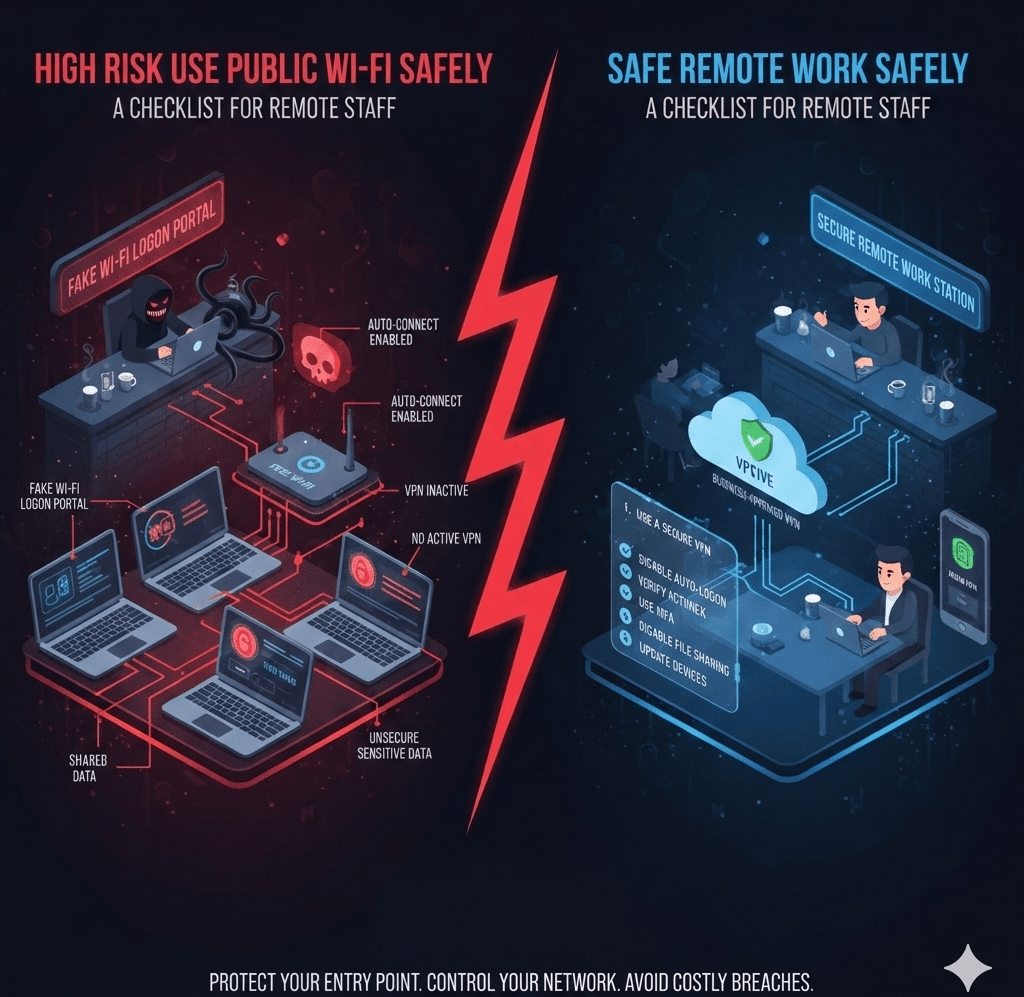
Public Wi-Fi is not inherently evil. It is inherently untrusted. Coffee shops, hotels, airports, and coworking spaces are some of the most common starting points we see in real-world credential theft and account compromise.
At Mindcore Technologies, many investigations begin the same way: a legitimate login from a public network, followed by session hijacking, MFA abuse, or silent data access. No malware. No warnings. Just trust in the wrong place.
This guide gives remote staff a clear, practical checklist to reduce risk when public Wi-Fi is unavoidable.
Why Public Wi-Fi Is High Risk for Remote Workers
Public Wi-Fi networks are:
- Shared by strangers
- Often poorly configured
- Rarely monitored
- Easy to impersonate
Attackers do not need to break encryption. They exploit trust, visibility gaps, and session handling.
What Attackers Actually Do on Public Wi-Fi
Forget movie-style hacking.
Real attacks include:
- Evil twin networks that mimic legitimate Wi-Fi names
- Traffic interception on misconfigured networks
- Session hijacking after login
- Credential capture via fake captive portals
If you connect automatically and authenticate quickly, attackers already have what they need.
The Public Wi-Fi Safety Checklist for Remote Staff
1. Avoid Public Wi-Fi When Possible
This sounds obvious, but it matters.
Prefer:
- Mobile hotspots
- Personal tethering
- Known secure networks
If sensitive work is involved, public Wi-Fi should be the last option.
2. Never Auto-Connect to Wi-Fi Networks
Auto-connect removes decision-making.
Action:
- Disable auto-join for public networks
- Manually select known networks
- Forget networks after use
Attackers rely on devices reconnecting automatically.
3. Verify the Network Name
Evil twin networks use familiar names.
Before connecting:
- Ask staff for the exact Wi-Fi name
- Avoid generic names like “Free Wi-Fi”
- Be suspicious of duplicate networks
If two networks look similar, disconnect.
4. Use a Secure VPN (Business-Approved)
A VPN encrypts traffic between your device and a trusted endpoint.
Rules:
- Connect the VPN before accessing work tools
- Use only company-approved VPNs
- Do not assume free VPNs are safe
A VPN does not fix everything, but it removes easy interception.
5. Avoid Logging Into Sensitive Systems
Public Wi-Fi is not the place for:
- Financial systems
- Admin portals
- Password managers (vault access)
- Privileged accounts
Delay high-risk actions until on a trusted network.
6. Assume Every Session Can Be Watched
Operate with caution.
Best practices:
- Log out when finished
- Close browser sessions
- Avoid keeping apps signed in
- Lock your screen aggressively
Session persistence is a common exploit target.
7. Use MFA — But Don’t Trust It Blindly
MFA helps, but it is not invincible.
Be alert to:
- Unexpected MFA prompts
- Repeated approval requests
- Login alerts you did not initiate
MFA fatigue attacks often start on public networks.
8. Disable File Sharing and AirDrop
Wireless sharing expands attack surface.
Before connecting:
- Disable file sharing
- Disable AirDrop or nearby sharing
- Turn off device discoverability
These services are often abused on shared networks.
9. Keep Your Device Fully Updated
Public networks expose devices to known exploits.
Minimum requirements:
- OS updates installed
- Browser up to date
- Endpoint protection enabled
Outdated devices are easy targets.
10. Log Out and Forget the Network
When finished:
- Disconnect manually
- Forget the network
- Close all work sessions
Do not carry trust forward.
Warning Signs You Should Disconnect Immediately
Leave the network if you see:
- Sudden captive portal redirects
- Certificate warnings
- Unexpected login prompts
- Network drops and reconnects
- Duplicate Wi-Fi names appearing
Trust your instincts. Disconnect first, investigate later.
What Public Wi-Fi Safety Is NOT
Public Wi-Fi safety is not:
- Just “use HTTPS”
- Just “have a password”
- Just “trust MFA”
- Just “be careful”
It is about controlling exposure and session risk.
How Businesses Should Support Remote Staff
Organizations must assume public Wi-Fi use will happen.
That means:
- Enforcing device security baselines
- Using conditional access policies
- Limiting session lifetime
- Monitoring login behavior
- Training staff on real attack patterns
Security should compensate for human reality.
How Mindcore Technologies Helps Secure Remote Work
Mindcore supports remote and hybrid teams by focusing on:
- Secure remote access design
- Identity-aware conditional access
- Session protection and monitoring
- Endpoint hardening standards
- Real-world security training
We reduce risk before credentials are abused.
A Simple Reality Check for Remote Workers
You are exposed on public Wi-Fi if:
- You connect automatically
- You log into sensitive systems casually
- You ignore MFA prompts
- You stay logged in for hours
- You assume “nothing happened”
Most compromises are silent.
Final Takeaway
Public Wi-Fi is not about panic. It is about discipline. Remote staff who understand session risk, identity abuse, and network trust can work safely even in shared environments. Those who treat public Wi-Fi as “just internet” become easy targets.
Use public Wi-Fi only when necessary. Limit what you do on it. Protect sessions aggressively. And assume attackers are closer than you think.