

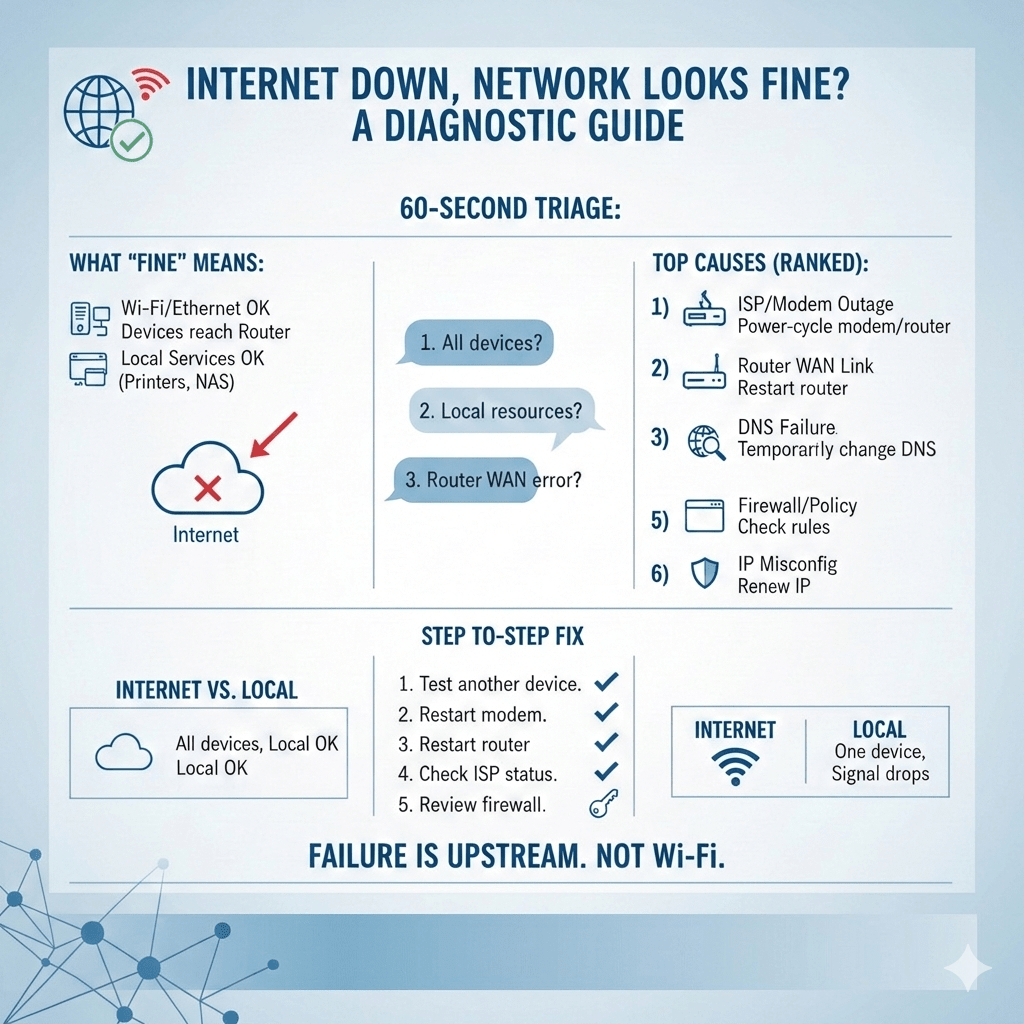
When you’re connected to Wi-Fi but have no internet, the failure is often upstream of your local network at the modem, gateway, DNS layer, ISP handoff, or a security control enforcing policy.
At Mindcore Technologies, this scenario is common during ISP issues, routing glitches, and misapplied security rules. The fix is not guesswork; it’s layered diagnosis.
What “Network Looks Fine” Actually Means
If devices are connected and local resources still work, then:
- Wi-Fi or Ethernet is operational
- Devices can reach the router/switch
- Local services (printers, NAS, servers) may still be reachable
What’s failing is the path from your network to the internet.
Start With a 60-Second Triage
Answer these before changing anything:
- Is every device affected or just one?
- Do local resources work? (printers, local apps)
- Does the router show a WAN/Internet error?
Your answers pinpoint the layer that failed.
Most Common Causes (Ranked)
1) ISP or Modem Outage
Signs: All devices affected; Wi-Fi stays connected.
Fix: Power-cycle the modem (off 60 seconds), then the router. Check ISP status.
2) Router Lost Its WAN Link
Signs: Router looks “up,” WAN shows disconnected.
Fix: Restart router; verify WAN credentials/settings; update firmware if available.
3) DNS Failure
Signs: Browsers say “no internet,” but pings to public IPs may work.
Fix: Restart gateway; temporarily switch DNS; verify firewall/DNS rules.
4) Captive Portal Not Completed
Signs: Common on hotels/guest Wi-Fi.
Fix: Open a browser and visit a non-HTTPS site to trigger login.
5) Firewall or Security Policy Blocking Outbound
Signs: Common at work; sometimes only certain devices impacted.
Fix: Check gateway alerts; review outbound rules; confirm device posture.
6) IP/Gateway Misconfiguration
Signs: Self-assigned IP or missing default gateway.
Fix: Renew IP; restart adapter; ensure DHCP is running.
How to Tell If It’s Internet vs Local Network
- Internet issue: All devices affected; local resources still reachable.
- Local network issue: Only one device/area affected; signal drops; moving helps.
Don’t troubleshoot Wi-Fi if the internet path is broken.
Safe, Step-by-Step Fix (In Order)
- Test another device on the same network
- Restart modem (wait 60 seconds)
- Restart router/gateway
- Test DNS (or temporarily change DNS)
- Check ISP status page
- Review firewall/gateway alerts (business)
Avoid factory resets unless directed.
Security Scenarios to Consider (Business Networks)
Sometimes this state is intentional:
- Device quarantined for policy violations
- Conditional access blocking external traffic
- Expired licenses on security gateways
If only one work device is affected, contact IT before changing settings.
Why Restarting Often Works (But Isn’t a Cure)
Restarts renew ISP leases, clear routing/DNS states, and restart stalled services. If outages recur, you have a resilience or monitoring gap.
Preventing Recurrence
- Add backup internet/failover where uptime matters, including evaluating 5G as a backup internet option when it fits your location and connectivity requirements.
- Monitor WAN and DNS health with alerts
- Keep gateway firmware current
- Maintain clean, intentional firewall rules
- Separate Wi-Fi health from internet health monitoring
How Mindcore Technologies Helps
Mindcore designs networks that make this situation rare—and quick to diagnose—by implementing:
- Redundant ISPs and automatic failover
- Clear separation of Wi-Fi, LAN, and WAN layers
- Resilient firewall and DNS design
- Proactive monitoring and alerting
Final Takeaway
If the network looks fine but the internet is down, the failure is upstream. Check the ISP, WAN link, DNS, and security enforcement—in that order. Repeated occurrences point to missing redundancy or visibility, not bad Wi-Fi.

