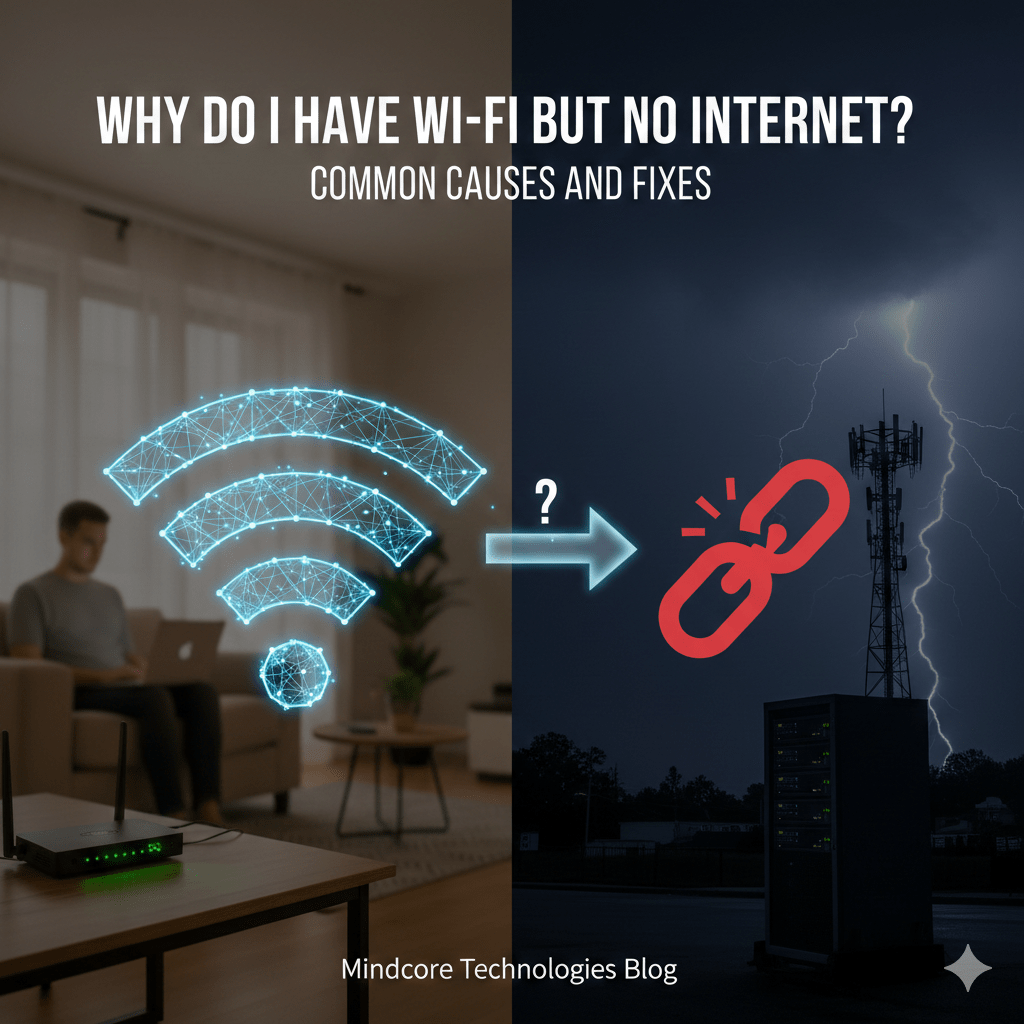
Having Wi-Fi but no internet is one of the most common and misunderstood connectivity problems. It feels contradictory, but technically it makes perfect sense. Your device is connected to a local network, but that network cannot reach the internet.
At Mindcore Technologies, this scenario shows up during outages, misconfigurations, security enforcement events, and ISP failures. Knowing where the break actually is saves time and prevents unnecessary resets or hardware replacement.
This guide explains the real causes behind “connected but no internet” and the safest, fastest ways to fix it.
What “connected but no internet” Actually Means
Wi-Fi and internet are two separate layers:
- Wi-Fi connects your device to a local router or access point
- Internet connects that router to the outside world via an ISP
When Wi-Fi works but internet does not:
- Your device can talk to the router
- The router cannot talk to the internet
Local connectivity is intact. Upstream connectivity is broken.
The Most Common Causes (Ranked by Frequency)
1. ISP or Modem Outage
An ISP or modem outage is a leading reason users see they are connected but no internet, even though the local Wi-Fi remains active.
Symptoms:
- All devices affected
- Wi-Fi shows connected
- No websites load
Fix:
- Check ISP outage status
- Restart the modem (power off for 60 seconds)
- Contact the ISP if the issue persists
2. Router Lost Its Internet Connection
Routers can lose WAN connectivity even if they appear normal.
Common reasons:
- Expired ISP lease
- Firmware bugs
- Temporary routing failure
Fix:
- Restart the router
- Check WAN or Internet status in router settings
- Update firmware if available
3. DNS Failure
The internet may be reachable, but names cannot be resolved.
Signs:
- Browsers say “no internet”
- IP-based sites may work
- Apps fail inconsistently
Fix:
- Restart router and device
- Temporarily change DNS servers
- Check firewall or security appliance rules
4. Captive Portal or Authentication Issue
Common on public, hotel, or guest Wi-Fi.
What happens:
- You are connected but not authorized
- Internet access is blocked until login
Fix:
- Open a browser
- Visit a non-HTTPS site to trigger the login page
- Complete authentication
5. Firewall or Security Device Blocking Traffic
Common in business networks.
Causes:
- Overly restrictive outbound rules
- Expired licenses
- Security policy enforcement
Fix:
- Check gateway or firewall alerts
- Verify outbound access rules
- Fail over to backup internet if available
6. IP Address or Gateway Problems
Your device may be connected but misconfigured.
Symptoms:
- Self-assigned IP address
- Missing default gateway
- Limited connectivity warnings
Fix:
- Renew IP address
- Restart network adapter
- Verify DHCP service is running
How to Tell If the Problem Is Wi-Fi or Internet
It’s Likely Wi-Fi If
- Only one device is affected
- Signal strength is weak
- Moving closer to the router helps
It’s Likely Internet If
- All devices show the same issue
- Wi-Fi stays connected
- Local resources still work
This distinction prevents wasted troubleshooting.
Why Restarting Sometimes “Fixes” It
Restarting:
- Renews ISP connections
- Clears routing tables
- Resets DNS resolution
- Restarts stalled services
It works often, but it does not address root causes if the problem is recurring.
Security-Related Reasons This Can Happen
In business environments, “connected but no internet” may be intentional.
Possible reasons:
- Device quarantine due to policy violation
- Failed security posture check
- Access restricted by conditional access rules
If only one device is affected at work, security enforcement is a strong possibility.
Quick Safe Fix Checklist (In Order)
- Check if other devices are affected
- Restart modem (wait 60 seconds)
- Restart router
- Test a different network if possible
- Check ISP status
- Review firewall or gateway alerts
Avoid factory resets unless absolutely necessary.
Why Businesses See This More Often Than They Should
Frequent occurrences usually indicate:
- Single points of failure
- No backup internet
- Poor monitoring
- Overly complex security rules
The message is not the problem. Lack of visibility is.
How Mindcore Technologies Prevents This Scenario
Mindcore helps organizations reduce “Wi-Fi but no internet” issues by implementing:
- Redundant internet connections
- Proper gateway and ISP monitoring
- Clean firewall and routing design
- Secure but resilient access controls
- Alerting before users are impacted
Well-designed networks fail gracefully and predictably.
A Simple Reality Check
If you cannot quickly answer:
- Is this a Wi-Fi issue or an internet issue?
- Is it device-specific or network-wide?
- Where would I check first?
Your network lacks operational clarity.
Final Takeaway
Seeing connected but no internet is not confusing: it confirms that local Wi-Fi is functioning while the network’s access to the internet is broken, highlighting where visibility or redundancy improvements are needed. The cause is usually an ISP issue, routing failure, DNS problem, or security enforcement, not the Wi-Fi signal itself.
Understanding this distinction saves time, prevents unnecessary resets, and helps businesses design more resilient networks that fail less often and recover faster.
Frequently Asked Questions
What does “connected but no internet” mean?
“Connected but no internet” means your device is successfully connected to the local Wi-Fi network, but the network cannot reach the public internet. The failure usually occurs beyond the device, involving the modem, router, ISP connection, DNS, gateway, or another upstream network service.
Your device can still communicate with the router and possibly other local resources. The issue is usually with the connection between the local network and the internet rather than with the Wi-Fi connection itself.
What causes Wi-Fi to be connected but have no internet?
Common causes of Wi-Fi with no internet include ISP outages, modem or router failures, DNS problems, captive portal issues, firewall restrictions, and incorrect IP or gateway settings. Testing another device helps determine whether the problem is limited to one device or affects the entire network.
If every device is affected, investigate the ISP, modem, router, or WAN connection first. If only one device has the problem, review that device’s network settings, IP configuration, authentication, or security controls.
How do I troubleshoot Wi-Fi connected but no internet?
To troubleshoot Wi-Fi with no internet, test another device, restart the modem and router, check ISP status, reconnect to the network, renew the IP address, and review DNS, firewall, or gateway settings. Start with basic checks before changing advanced network configurations or resetting equipment.
A safe troubleshooting order is to identify whether the problem affects one device or the entire network, then work outward from the device to the router, modem, ISP connection, DNS, and security controls.
Can cybersecurity tools cause Wi-Fi to have no internet?
Yes. VPNs, firewalls, DNS filtering, endpoint security tools, and network access controls can block internet access even when Wi-Fi remains connected. In business environments, the restriction may be intentional, so users should review security alerts or contact IT before disabling protective controls.
Security systems may quarantine a device after a failed posture check, policy violation, or detected risk. If one managed business device loses internet access while others remain online, security enforcement should be investigated before changing network settings.
Why is reliable internet connectivity important for businesses?
Reliable internet connectivity is important for businesses because it supports cloud applications, communication systems, remote work, cybersecurity monitoring, collaboration tools, and operational continuity. Resilient networks with monitoring, redundancy, and clear failover paths help reduce downtime and maintain access to critical systems during disruptions.
Businesses that depend heavily on cloud platforms should also consider redundant internet connections, proactive gateway monitoring, backup connectivity, resilient firewall design, and alerting that identifies failures before users experience widespread disruption.
Network Infrastructure and Connectivity Expertise from Matt Rosenthal
Matt Rosenthal, CEO of Mindcore Technologies, has extensive experience helping organizations strengthen network infrastructure, operational continuity, and secure connectivity across modern business environments. His expertise in network architecture, cloud connectivity, secure remote access, infrastructure scalability, cybersecurity governance, and managed IT services helps businesses improve operational reliability while reducing downtime and connectivity-related risks. Matt’s leadership focuses on building proactive infrastructure strategies that strengthen network performance, improve operational visibility, reduce enterprise risk, and support scalable long-term business growth.