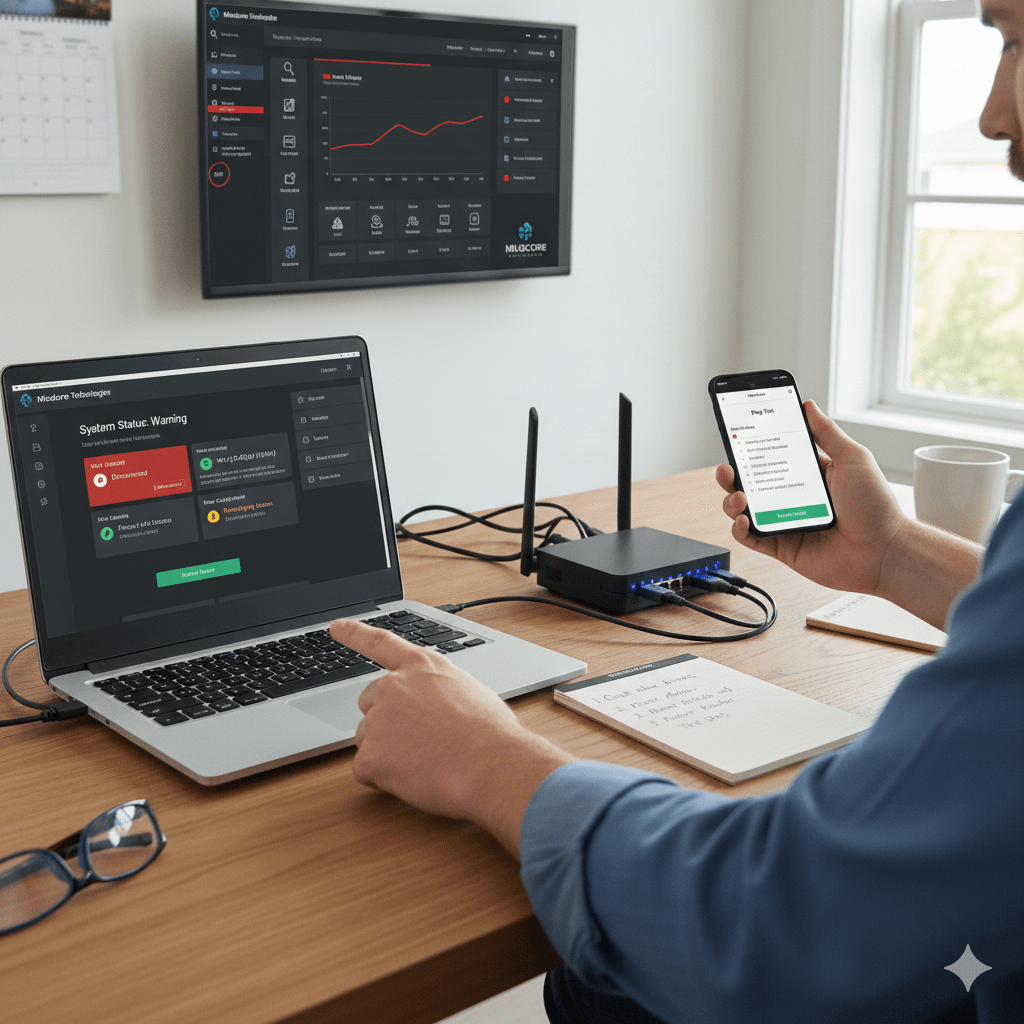
If you’re asking, “Why is my Wi-Fi not working,” the issue usually lies in the layers between your device, router, and internet connection—not the Wi-Fi signal alone. It’s almost always a failure somewhere between radio signal, routing, DNS, or security policy. Guessing wastes time. Layered troubleshooting fixes it fast.
At Mindcore Technologies, we resolve this daily across homes and offices. The winning approach is simple: identify which layer failed, then apply the correct fix.
Start Here: What Exactly Is Failing? (60-Second Triage)
Ask these three questions before changing anything:
- Is Wi-Fi connected? (You see the network and connect successfully.)
- Is the internet reachable? (Websites/cloud apps load.)
- Is it one device or all devices?
Answering “Why is my Wi-Fi not working” starts by identifying whether the problem is connection, internet access, or device-specific.
If Wi-Fi Won’t Connect At All
Common Causes
- Wrong password or changed credentials
- Router/access point offline
- Wi-Fi radio disabled on the device
- MAC filtering or security policy blocking access
Fixes
- Re-enter the password; forget/rejoin the network
- Power-cycle the router/access point
- Confirm Wi-Fi is enabled on the device
- Check router access controls (or contact IT at work)
If Wi-Fi Connects But There’s No Internet
Common Causes
- To resolve “Why is my Wi-Fi not working,” first check the ISP status and restart the modem to eliminate external connectivity issues.
- Router lost its WAN link
- DNS failure
- Captive portal not completed (hotels/guest Wi-Fi)
- Firewall or security policy blocking outbound traffic
Fixes
- Restart modem (off 60 seconds), then router
- Check WAN/Internet status on the router
- Temporarily change DNS to test
- Open a browser to trigger captive portal
- Review gateway/firewall alerts (business networks)
If Only One Device Has Problems
Common Causes
- Corrupt network profile
- Outdated drivers/OS
- Device quarantined by security policy
- Weak signal at that location
Fixes
- Forget/rejoin Wi-Fi
- Update OS and Wi-Fi drivers
- Move closer to the access point
- At work, confirm device posture with IT
If Wi-Fi Is Slow or Drops Randomly
Common Causes
- Interference (neighbors, microwaves, concrete/metal)
- Overloaded access point
- Poor access point placement
- Old hardware or firmware
Fixes
- Change channels or bands (use 5 GHz where possible)
- Reposition access points; add coverage where needed
- Update firmware
- Replace end-of-life routers/access points
Home vs Office: Key Differences That Matter
Home Wi-Fi
- Usually a single router
- Interference and placement are top issues
- ISP problems are common
Best Practices
- Use WPA3 if supported
- Disable WPS
- Update firmware regularly
- Businesses asking “Why is my Wi-Fi not working” should ensure access points are positioned strategically, centrally, and elevated to reduce signal interference.
Office Wi-Fi
- Multiple access points and policies
- Identity and security enforcement in play
- Outbound controls may be intentional
Best Practices
- Use WPA3-Enterprise or WPA2-Enterprise
- Separate guest and internal Wi-Fi
- Segment wireless traffic
- Monitor and alert on health and usage
Fast Diagnostic Tests (Safe and Simple)
- Check another device on the same network
- Move locations (rule out signal issues)
- Ping a public IP (tests internet vs DNS)
- Check router lights/status page
- Look for alerts on firewalls or security gateways
Avoid factory resets unless directed.
Security Scenarios People Miss (Office Networks)
Sometimes Wi-Fi “not working” is intentional:
- Device failed posture checks (updates/EDR)
- Conditional access blocking external traffic
- Quarantine due to risk
If only one work device is affected, contact IT before changing settings.
Why Restarting Often Works (But Isn’t a Cure)
Restarts renew leases, clear routing/DNS states, and restart stalled services. If the problem keeps returning, you have a design, capacity, or monitoring issue.
How Mindcore Technologies Prevents Recurring Wi-Fi Issues
To solve “Why is my Wi-Fi not working,” Mindcore Technologies designs resilient wireless networks with:
- Proper access point density and placement
- Modern security (WPA3, identity-based access)
- Segmentation and clean firewall rules
- Proactive monitoring of Wi-Fi and WAN health
- Redundant internet where uptime matters
Quick Reality Check
You’ll keep fighting Wi-Fi if:
- You can’t tell Wi-Fi issues from internet issues
- Firmware is never updated
- Guest and internal traffic share access
- There’s no monitoring or alerts
Final Takeaway
Wi-Fi problems are rarely mysterious. They’re layered failures. Identify whether the issue is connection, routing, DNS, signal, or policy, then apply the targeted fix. Homes benefit from better placement and updates. Offices need identity-aware security, segmentation, and monitoring.
Frequently Asked Questions
Why does Wi-Fi connect but the internet still not work?
This usually happens when the device successfully connects to the local wireless network, but the router, modem, DNS service, ISP connection, or security policy prevents internet access.
What are the most common causes of Wi-Fi problems at home or in the office?
Common causes include ISP outages, router failures, DNS issues, outdated firmware, wireless interference, overloaded access points, firewall restrictions, weak signal coverage, or device-specific configuration problems. Businesses implementing modern cloud and network infrastructure strategies can improve reliability and reduce recurring connectivity disruptions.
How can users troubleshoot Wi-Fi connectivity issues?
Users can restart the modem and router, reconnect devices to the network, test another device, move closer to the access point, update firmware or drivers, and verify whether the internet provider is experiencing an outage. Organizations using managed IT support services can proactively monitor and resolve network issues faster.
Why is Wi-Fi troubleshooting different in office environments?
Office environments often include multiple access points, identity-based security policies, segmented networks, firewall controls, and device compliance requirements that can intentionally restrict access or quarantine devices. Strong cybersecurity and network segmentation strategies help businesses maintain both security and operational reliability.
How can businesses reduce recurring Wi-Fi problems?
Businesses can reduce recurring issues through proactive monitoring, proper access point placement, network segmentation, firmware updates, secure wireless configurations, redundant internet connectivity, and ongoing infrastructure management. Organizations investing in professional IT infrastructure management improve long-term wireless stability and operational continuity.
Wireless Infrastructure and Network Reliability Expertise from Matt Rosenthal
Matt Rosenthal, CEO of Mindcore Technologies, has extensive experience helping organizations strengthen wireless infrastructure, operational continuity, and secure connectivity across modern business environments. His expertise in network architecture, secure remote access, infrastructure scalability, wireless optimization, cybersecurity governance, and proactive IT monitoring helps businesses improve network reliability while reducing downtime and connectivity-related disruptions. Matt’s leadership focuses on building proactive infrastructure strategies that strengthen operational visibility, improve wireless performance, reduce enterprise risk, and support scalable long-term business growth.