

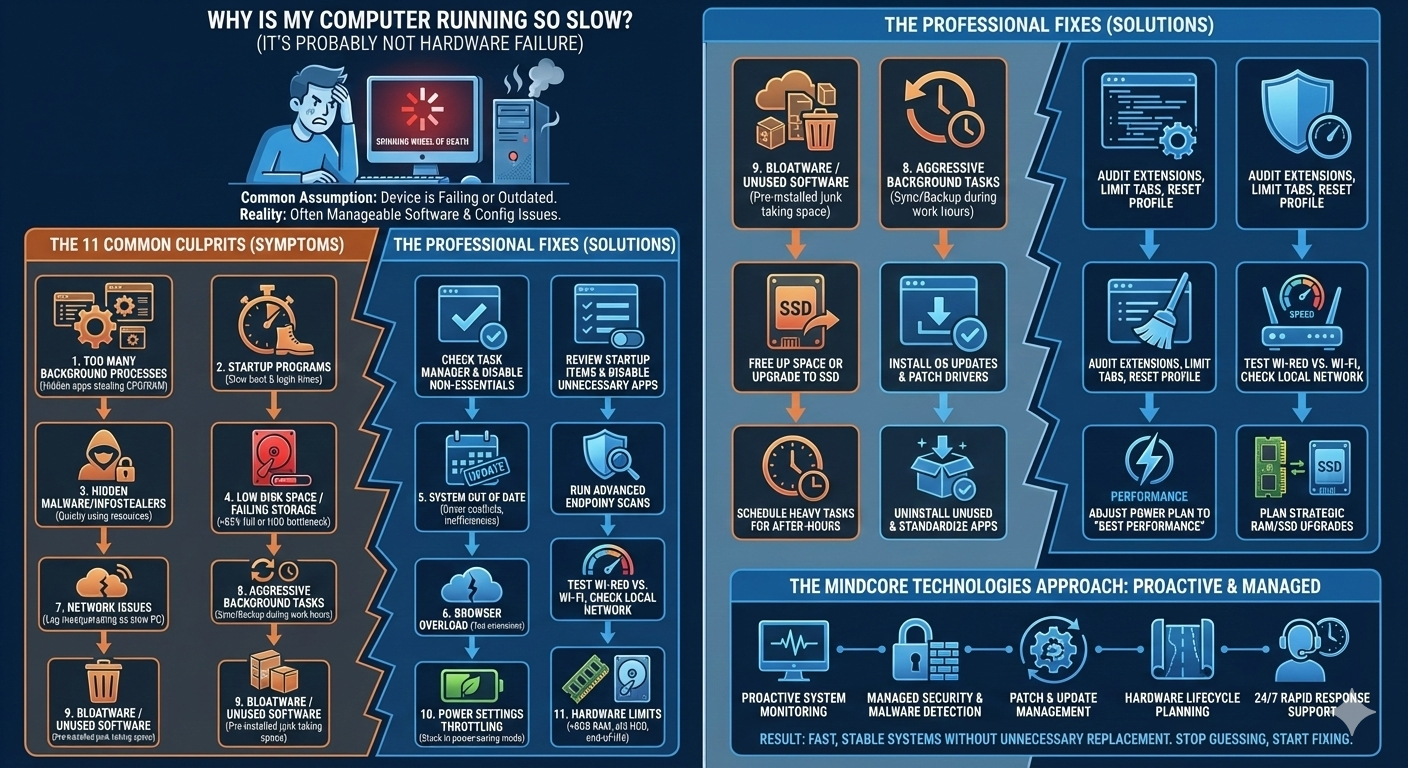
When a computer slows down, most people assume the device is failing or outdated. In reality, that’s rarely the case. In most business environments, slow computers are the result of misconfiguration, background load, malware, aging storage, or network-related issues, not hardware death.
At Mindcore Technologies, slow-system complaints are one of the most common support requests we handle. In the majority of cases, performance can be restored quickly once the real cause is identified. The key is knowing where to look and what actually matters.
This guide explains why computers slow down and what you can realistically do to fix the problem.
The Most Common Reasons Computers Become Slow
Before fixing performance, IT professionals determine what is causing the slowdown. Guessing wastes time and often makes things worse.
Here are the most common root causes we see.
1. Too Many Background Processes Running
Modern systems run dozens of processes at once. Over time, unnecessary software stacks up.
Common offenders include:
- Browser tabs and background extensions
- Auto-starting applications
- Cloud sync tools running constantly
- Legacy software that was never removed
What to do:
- Check Task Manager or Activity Monitor
- Identify apps consuming high CPU or memory
- Disable or uninstall non-essential programs
If CPU or RAM usage is consistently high, performance will degrade.
2. Startup Programs Slowing Everything Down
Many applications quietly configure themselves to start with your system.
Symptoms:
- Long boot times
- Sluggish performance immediately after login
What to do:
- Review startup items
- Disable anything that isn’t security-related or essential
- Restart and measure improvement
This is one of the fastest performance wins.
3. Malware or Infostealers Running in the Background
Slow performance can indicate a security issue.
Modern malware:
- Avoids obvious pop-ups
- Uses CPU and disk quietly
- Steals credentials
- Opens outbound network connections
What to do:
- Run advanced endpoint security scans
- Remove suspicious browser extensions
- Monitor unusual network activity
At Mindcore, many “slow computer” tickets uncover early-stage malware infections.
4. Low Disk Space or Failing Storage
Storage problems are a major performance killer.
Warning signs:
- Disk usage consistently above 85 percent
- Freezing during file access
- Long application load times
What to do:
- Free up disk space
- Archive old files
- Replace failing drives
- Upgrade from HDD to SSD when possible
Storage upgrades often deliver immediate performance improvements.
5. Systems Are Out of Date
Outdated operating systems and drivers create inefficiencies.
Problems include:
- Driver conflicts
- Poor compatibility with modern software
- Missed performance improvements
What to do:
- Install OS updates
- Patch drivers and firmware
- Remove unsupported applications
Performance and security updates frequently go hand in hand.
6. Browser Issues Are Slowing Everything Down
Most business workflows live inside browsers.
Common browser-related problems:
- Excessive open tabs
- Poorly written extensions
- Corrupt browser profiles
- Heavy cloud app usage
What to do:
- Remove unnecessary extensions
- Limit open tabs
- Reset or rebuild browser profiles if needed
A broken browser profile can cripple system performance.
7. Network Issues Masquerading as Computer Slowness
Sometimes the computer is fine. The network isn’t.
Symptoms include:
- Lag in cloud applications
- Slow uploads or downloads
- Frozen video calls
What to do:
- Test wired vs. Wi-Fi connections
- Check signal strength
- Identify network congestion
- Replace outdated networking equipment
Poor connectivity feels exactly like a slow computer.
8. Background Sync, Indexing, and Backup Tasks
Background services consume resources quietly.
Examples:
- File indexing
- Cloud sync loops
- Backup jobs running during business hours
What to do:
- Schedule heavy tasks after hours
- Limit indexing scope
- Adjust sync behavior
Reducing background noise restores responsiveness.
9. Too Much Installed Software (Bloatware)
Unused applications accumulate over time and slow systems down.
What to do:
- Uninstall unused programs
- Remove vendor bloatware
- Standardize approved applications
Lean systems perform better and break less often.
10. Power and Performance Settings Are Throttling the System
Many laptops run in power-saving mode continuously.
Symptoms:
- Sluggish performance
- CPU throttling
- Poor multitasking
What to do:
- Adjust power settings to balanced or performance mode
- Disable aggressive power throttling
This issue is common and often overlooked.
11. Hardware Is Reaching Practical Limits
Sometimes hardware really is the bottleneck.
Red flags:
- Less than 8 GB of RAM
- Mechanical hard drives
- End-of-life devices
- Unsupported operating systems
What to do:
- Upgrade RAM
- Replace HDDs with SSDs
- Plan strategic device refreshes
Hardware upgrades should be intentional, not reactive.
How IT Professionals Approach Slow Computers
IT teams don’t guess. They:
- Analyze resource usage
- Check security posture
- Verify disk health
- Evaluate network performance
- Remove inefficiencies
- Prevent repeat issues
Random fixes rarely solve systemic problems.
How Mindcore Technologies Keeps Systems Running Fast
Mindcore helps organizations maintain performance through:
- Proactive system monitoring
- Endpoint security and malware detection
- Patch and update management
- Hardware lifecycle planning
- Network optimization
- Standardized device configurations
- 24/7 support and rapid response
Consistent performance comes from disciplined management, not luck.
Final Takeaway
A slow computer is usually a symptom, not a failure. In most cases, performance issues stem from manageable causes like background load, security problems, storage constraints, or configuration gaps.
When addressed properly, systems can regain speed and stability without replacement.

