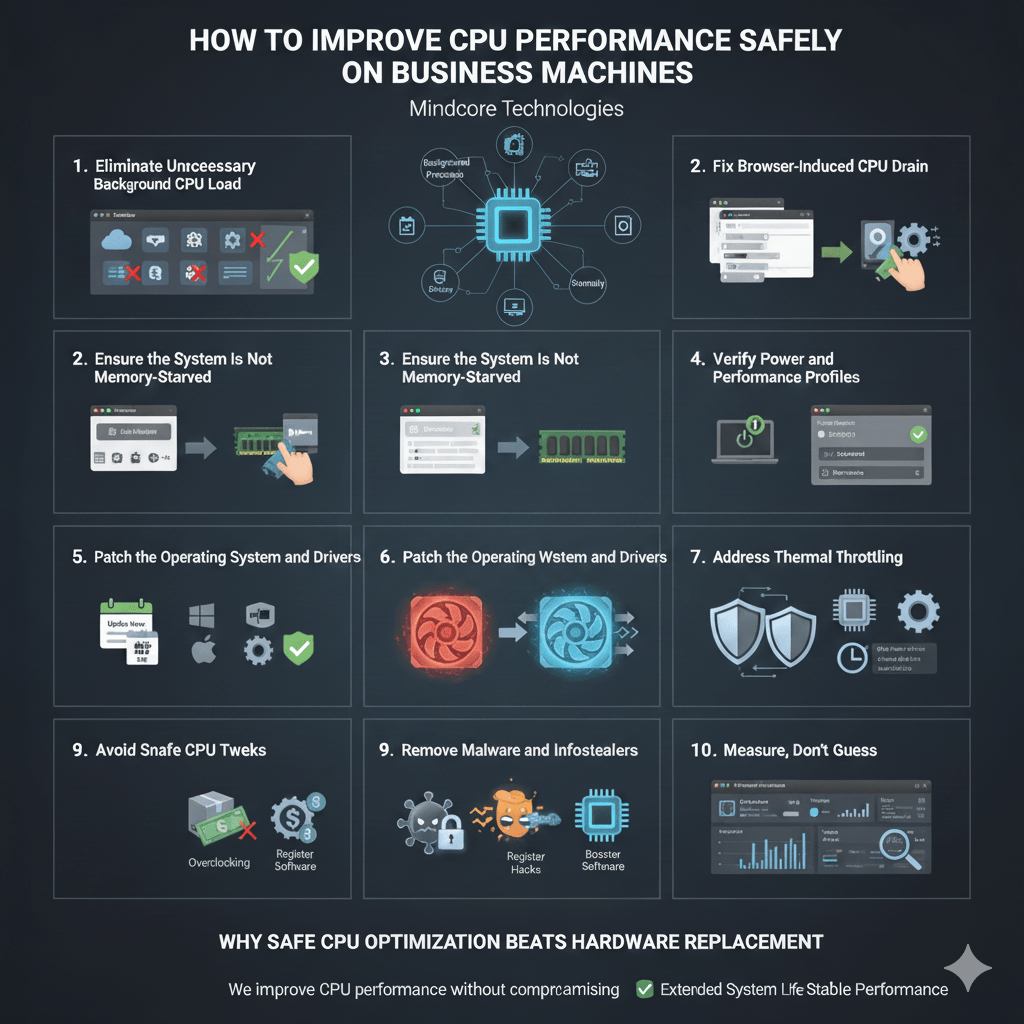
When a business PC feels slow, the CPU is often blamed first. In reality, outright CPU failure is rare. What’s far more common is CPU capacity being wasted or throttled by poor configuration, background load, security overhead, or power management.
At Mindcore Technologies, we improve CPU performance every day without overclocking, risky tweaks, or shortcuts that compromise stability. In business environments, CPU optimization must be safe, repeatable, and compliant, not experimental.
This guide explains how IT professionals safely unlock CPU performance on business machines.
The First Rule of CPU Optimization in Business
Never optimize the CPU in isolation.
CPU performance is affected by:
- Background processes
- Memory pressure
- Disk speed
- Power management
- Thermal limits
- Security tooling
- OS scheduling behavior
Improving CPU performance safely means removing unnecessary load, not forcing the processor to work harder than it should.
1. Eliminate Unnecessary Background CPU Load
Most CPU slowdowns come from processes that should not be running.
Common offenders:
- Auto-starting applications
- Cloud sync loops
- Vendor utilities
- Legacy software services
- Misbehaving browser extensions
What IT does:
- Identify top CPU consumers using Task Manager or monitoring tools
- Disable non-essential startup services
- Remove unused applications
Reducing background load often restores CPU headroom immediately.
2. Fix Browser-Induced CPU Drain
Browsers are the biggest CPU abusers in modern business workflows.
Typical issues:
- Dozens of open tabs
- Web apps running persistent scripts
- Poorly written extensions
- Corrupt browser profiles
Safe optimization steps:
- Remove unnecessary extensions
- Limit persistent tabs
- Reset unstable browser profiles
- Standardize approved browsers
A cleaned browser can cut CPU usage dramatically without touching system settings.
3. Ensure the System Is Not Memory-Starved
When RAM runs low, the CPU wastes cycles waiting on disk I/O.
Warning signs:
- High CPU usage combined with high disk activity
- Lag during multitasking
- Browser slowdowns under load
IT approach:
- Reduce memory-hungry background apps
- Close unused processes
- Evaluate RAM capacity before touching CPU settings
CPU performance improves when the processor is not blocked by memory bottlenecks.
4. Verify Power and Performance Profiles
Many business laptops are permanently throttled by power policies.
Symptoms:
- CPU stuck at low clock speeds
- Sluggish performance even when plugged in
- Performance drops during video calls
Safe fixes:
- Set power mode to Balanced or Performance
- Disable aggressive CPU throttling policies
- Confirm performance while connected to power
This is one of the most overlooked CPU performance fixes.
5. Address Thermal Throttling
Overheating silently reduces CPU speed.
Causes include:
- Dust buildup
- Poor airflow
- Thin laptop designs
- Degraded thermal paste
What IT checks:
- CPU temperature under load
- Fan behavior
- System logs for thermal events
Keeping the CPU cool maintains consistent performance without risk.
6. Patch the Operating System and Drivers
Outdated software can waste CPU cycles.
Issues we see:
- Inefficient task scheduling
- Driver conflicts
- Missed performance optimizations
Safe optimization steps:
- Apply OS updates
- Update chipset, graphics, and power drivers
- Remove unsupported software
Patching improves both performance and security.
7. Tune Security Tools Without Weakening Protection
Endpoint security runs constantly and uses CPU.
Problems arise when:
- Multiple security agents overlap
- Scans run during peak work hours
- Exclusions are misconfigured
Professional approach:
- Eliminate redundant tools
- Tune scan schedules
- Apply vendor-recommended exclusions
Security and performance can coexist when configured correctly.
8. Remove Malware and Infostealers
CPU spikes are often an early sign of compromise.
Modern threats:
- Avoid obvious alerts
- Run persistent background processes
- Consume CPU quietly
IT-safe response:
- Use enterprise-grade endpoint detection
- Investigate abnormal CPU behavior
- Remove malicious persistence mechanisms
Removing malware often restores CPU performance instantly.
9. Avoid Unsafe CPU Tweaks
What IT does not do in business environments:
- Overclock CPUs
- Modify BIOS voltages unnecessarily
- Use registry hacks claiming speed boosts
- Install “CPU booster” software
These approaches increase risk without delivering sustainable gains.
10. Measure, Don’t Guess
Safe CPU optimization is data-driven.
IT monitors:
- CPU utilization trends
- Process-level usage
- Thermal behavior
- Impact of security tools
- Performance over time
This ensures improvements last instead of creating new problems.
Why Safe CPU Optimization Beats Hardware Replacement
Replacing hardware without addressing CPU inefficiencies:
- Wastes budget
- Preserves misconfigurations
- Leads to repeat complaints
Optimization extends system life and stabilizes performance.
How Mindcore Technologies Improves CPU Performance Safely
Mindcore helps businesses unlock CPU performance through:
- Endpoint performance monitoring
- Background process optimization
- Browser and application tuning
- Power and thermal management
- Security tool optimization
- Patch and driver management
- Malware and infostealer removal
We improve CPU performance without compromising reliability or compliance.
Final Takeaway
Improving CPU performance safely is not about pushing the processor harder. It is about removing the friction that prevents it from working efficiently.
When background load is reduced, power settings are correct, systems are patched, security is tuned, and thermal limits are respected, CPU performance improves naturally and sustainably.