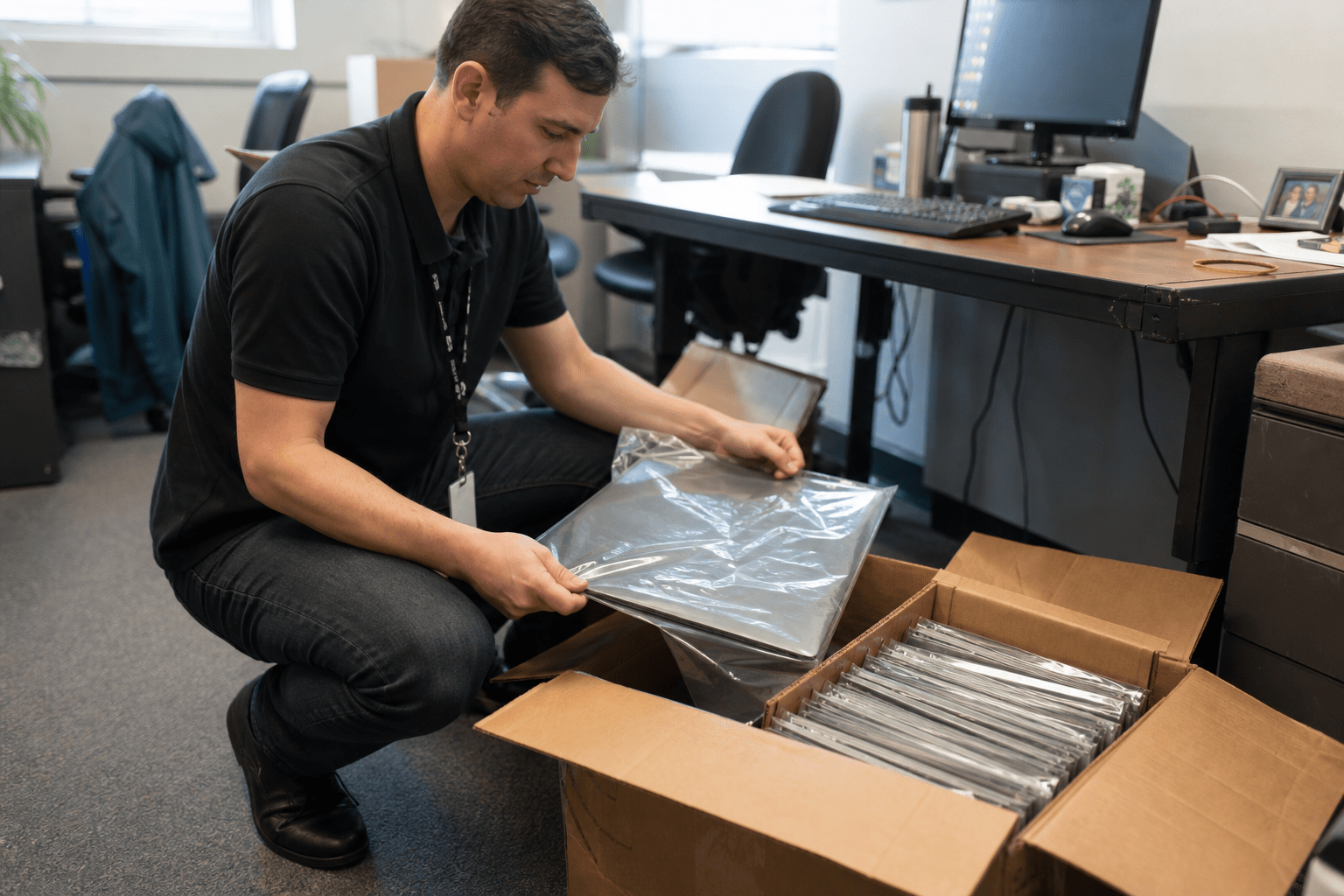
A Technology Refresh Strategy gives businesses a planned schedule for replacing hardware before it fails, reduces productivity, or loses security support. Most equipment runs on a three to five year cycle, but the calendar is not the only clock that matters. When a device or its operating system reaches end-of-life, the manufacturer stops shipping security updates, and that single event can force a replacement years ahead of the age-based plan. We tell every operations director the same thing: the right cadence is the one that retires gear on your terms, not on the day a vendor pulls support or a hard drive dies mid-quarter.
What Every SMB Leader Should Take From This
Refresh planning gets simpler once you separate the predictable part from the part that can blindside you. These five points cover the core of it for a 50 to 500 person company.
- A Technology Refresh Strategy allows most hardware replacements to be budgeted years in advance instead of handled as emergencies.
- Different asset classes age at different rates, so one company-wide replacement date is the wrong model.
- End-of-life support, not physical age, is the override that can force an early swap on any device.
- A planned cycle costs less over five years than running gear until it breaks, because failure brings downtime, data risk, and rush pricing.
- An outside IT partner can track every asset’s age and support date for you, which is the part most internal teams have no time to maintain.
Why Running Hardware Until It Breaks Costs More Than Replacing It
Reactive replacement almost always costs more than a planned refresh, because failure rarely waits for a convenient moment. We have walked into client offices the morning after a five-year-old server died, and the bill was never just the new server. It was the lost workday, the overtime to rebuild, the rush shipping, and the staff who could not invoice or schedule until the box came back online. A Technology Refresh Strategy replaces unpredictable repair costs with a planned budget line that leadership can forecast.
There is a productivity cost too, and it hides in plain sight. A laptop in its fifth year boots slowly, drops calls, and burns ten minutes here and there across a whole team every day. Multiply that by fifty employees and the “still working” machine is quietly more expensive than a new one. For a deeper look at how planning ahead protects a budget, our breakdown of how MSPs help businesses stay ahead of technology changes walks through the same math we run for clients.
How Often Should You Replace Each Type of Equipment
Most businesses should plan a technology refresh cycle of three to five years for core equipment, with the exact window set by the asset class rather than a single company-wide date. The mistake we see most is treating every device as if it ages at the same rate. A workstation, a server, and a desk phone live on very different clocks, and budgeting for them as one bucket either wastes money on gear that still has life or strands you with equipment that quietly fell out of support.
Use the table below as your starting baseline. These ranges reflect what we deploy across SMB clients and what the major manufacturers design their warranty and support windows around.
| Asset class | Typical refresh window | What drives the timing |
|---|---|---|
| Laptops and desktops | 3 to 5 years | Battery wear, performance drag, warranty expiry |
| Servers | 4 to 5 years | Warranty coverage, virtualization load, parts availability |
| Network gear (switches, firewalls, access points) | 4 to 5 years | Firmware support, throughput demand, security features |
| Mobile phones and tablets | 2 to 4 years | OS update eligibility, battery life, app compatibility |
Laptops and Desktops on a Three to Five Year Window
Laptops and desktops belong on a three to five year refresh window for most office roles. Three years suits heavy users such as engineers, designers, and anyone running large datasets, because performance demands climb faster than the hardware can keep up. Five years works for light users who live in email, a browser, and a few line-of-business apps, where the machine has plenty of headroom left.
The counterpoint is real and worth holding: a well-specified machine bought with extra memory and a solid-state drive can run comfortably past five years for the right person. We do not push a replacement on age alone. The deciding question is whether the device still receives operating system updates and whether its slowdowns are costing more in lost time than a new unit would cost to buy.
Servers and Network Gear on a Four to Five Year Window
Servers and network gear sit on a four to five year window, tied closely to manufacturer warranty and firmware support. A server out of warranty is a gamble, because a failed component on an unsupported box can mean days of downtime while you source a part that is no longer stocked. An effective Technology Refresh Strategy plans server replacements around warranty and support deadlines rather than visible hardware age alone.
Network equipment carries a quieter risk. A switch or firewall can run for years, so teams leave it alone, but once the vendor stops shipping firmware updates, every newly discovered flaw stays open on your network permanently. That is the point where a still-functioning device becomes a liability rather than an asset, and where the security clock takes over from the age clock.
Phones and Tablets on a Two to Four Year Window
Mobile devices turn over faster than anything else, on a two to four year cycle, because operating system support ends sooner. A phone that no longer receives OS updates loses access to current security patches and, eventually, to apps your team depends on. Battery degradation alone pushes many devices toward replacement by year three.
The opposing view has merit for low-stakes use: a tablet used only as a checked-in kiosk or a display screen can serve well past four years. The split comes down to data. A device that touches email, client records, or payment information must stay on a supported OS, so it follows the shorter cycle. A device that touches nothing sensitive can ride longer.

When the Security Clock Overrides the Calendar
The single trigger that overrides any age-based schedule is end-of-life support, because a device that stops receiving security patches becomes a standing risk no matter how well it still runs. This is the part most refresh articles bury, and it is the part we lead with. Age tells you when a device will probably slow down. End-of-life tells you the exact date a device stops being safe to operate, and that date is set by the vendor, not by you.
When Microsoft ends support for a Windows version, machines on it stop getting patches, and any flaw found afterward stays exploitable forever. You can confirm those dates directly on the Microsoft product lifecycle pages. The same logic applies to server operating systems, firewall firmware, and switch software. Attackers actively hunt unsupported systems, which is why agencies like CISA maintain a catalog of known exploited vulnerabilities that disproportionately lands on gear past its support window.
Our rule is simple: when a device or its OS hits end-of-life, it moves to the front of the replacement queue regardless of its age. A two-year-old firewall running unsupported firmware is more urgent than a four-year-old laptop that still gets updates. Tracking those support dates across every asset is exactly the kind of work an internal team rarely has time for, and it is built into how we manage IT for SMB clients. Aligning that tracking with the controls in the NIST Cybersecurity Framework keeps the refresh schedule and the security posture pointed in the same direction.
How to Build a Refresh Schedule You Can Budget Around
A workable refresh schedule starts with a current inventory of every device, its purchase date, and its end-of-support date, then spreads replacements across years so no single budget cycle takes the full hit. A sustainable Technology Refresh Strategy uses a rolling replacement plan instead of a one-time upgrade that creates another large budget spike later.
Start by listing what you own and tagging each item with two dates: when you bought it and when its support ends. Sort by whichever date comes first. Then stagger the replacements so you are retiring a portion of your fleet each year rather than all of it at once. This smooths cash flow and keeps your environment from ever drifting into a state where most of your gear is simultaneously old and unsupported.
Budget pressure is the usual objection, and it is a fair one. When funds are tight, the instinct is to defer, but deferral compounds the risk. Our case study on what happens when budget restricts your technology spend shows how a staged plan turns an unaffordable lump sum into a manageable annual line. Pair the schedule with a tested recovery plan, since refresh and resilience go together; our guidance on how often you should test your backup and data recovery plan covers the other half of staying operational. For a real example of staged modernization in practice, see how a growing dermatology practice took technology to the next level.
Frequently Asked Questions
What is a technology refresh cycle and how often should you do it?
A technology refresh cycle is the planned schedule for replacing IT hardware before it fails or loses support, and most businesses run it on a three to five year cadence. The exact timing depends on the asset class and on whether a device has reached end-of-life. Phones turn over every two to four years, while servers and network gear stretch to four or five.
Does a technology refresh cycle actually save money?
Yes, a planned refresh cycle costs less over time than replacing hardware reactively after it fails. Failure brings downtime, rush pricing, and lost productivity that a scheduled replacement avoids. Spreading replacements across years also keeps any single budget period from absorbing the full cost.
What happens if I keep using hardware after end-of-life?
Hardware past end-of-life stops receiving security patches, so any flaw discovered afterward stays open permanently. That turns a working device into a standing risk to your entire network. We move end-of-life equipment to the front of the replacement queue regardless of its physical age.
How do I know when my equipment reaches end-of-life?
Each manufacturer publishes end-of-support dates for its products, and Microsoft lists operating system dates on its product lifecycle pages. Tracking those dates across every device is tedious, which is why an IT partner usually maintains the schedule for you. The end-of-support date matters more than the age of the device.
Can I extend the life of equipment past the standard cycle?
Sometimes, if the device still receives security updates and its performance is not slowing the team down. A well-specified laptop or a low-stakes tablet can run past the typical window. The hard limit is end-of-life support: once patches stop, the device should be replaced no matter how well it runs.
Plan Your Refresh Before the Next Failure Picks the Date for You
The businesses that handle technology refresh well are the ones that decided the timing themselves instead of letting a dead server or an expired support date decide for them. Knowing your asset windows, three to five years for most gear, two to four for phones, and treating end-of-life as the override that jumps the line, turns refresh from a recurring scramble into a budgeted, predictable part of running the company. The work is not complicated, but it does take someone tracking every device, every purchase date, and every support deadline without letting it slip. That is where most internal teams run short on hours. Our team builds and maintains that schedule for SMBs every day, so the right equipment gets replaced at the right time and nothing ages quietly into a risk. If you want a clear picture of where your hardware stands today and what the next three years should look like, book a free strategy call and we will map it out with you at Book a free strategy call.
Technology Refresh Cycle Planning and IT Asset Lifecycle Expertise from Matt Rosenthal
Matt Rosenthal, CEO of Mindcore Technologies, has over 30 years of experience helping SMBs build technology refresh schedules that retire hardware on their own terms rather than on the day a vendor pulls support or a server dies mid-quarter with a full team waiting to get back online. He has seen firsthand how businesses run five-year-old laptops that still technically function while quietly losing ten minutes of productivity per employee per day across the entire team, and how a server outside its warranty window fails at the worst possible moment while the replacement part is no longer stocked anywhere. Matt leads a team that maintains current asset inventories with both purchase dates and end-of-support dates for every client, spreads replacements across years to avoid single-quarter budget spikes, and moves any device to the front of the replacement queue the moment its OS or firmware hits end-of-life regardless of how well it still runs.