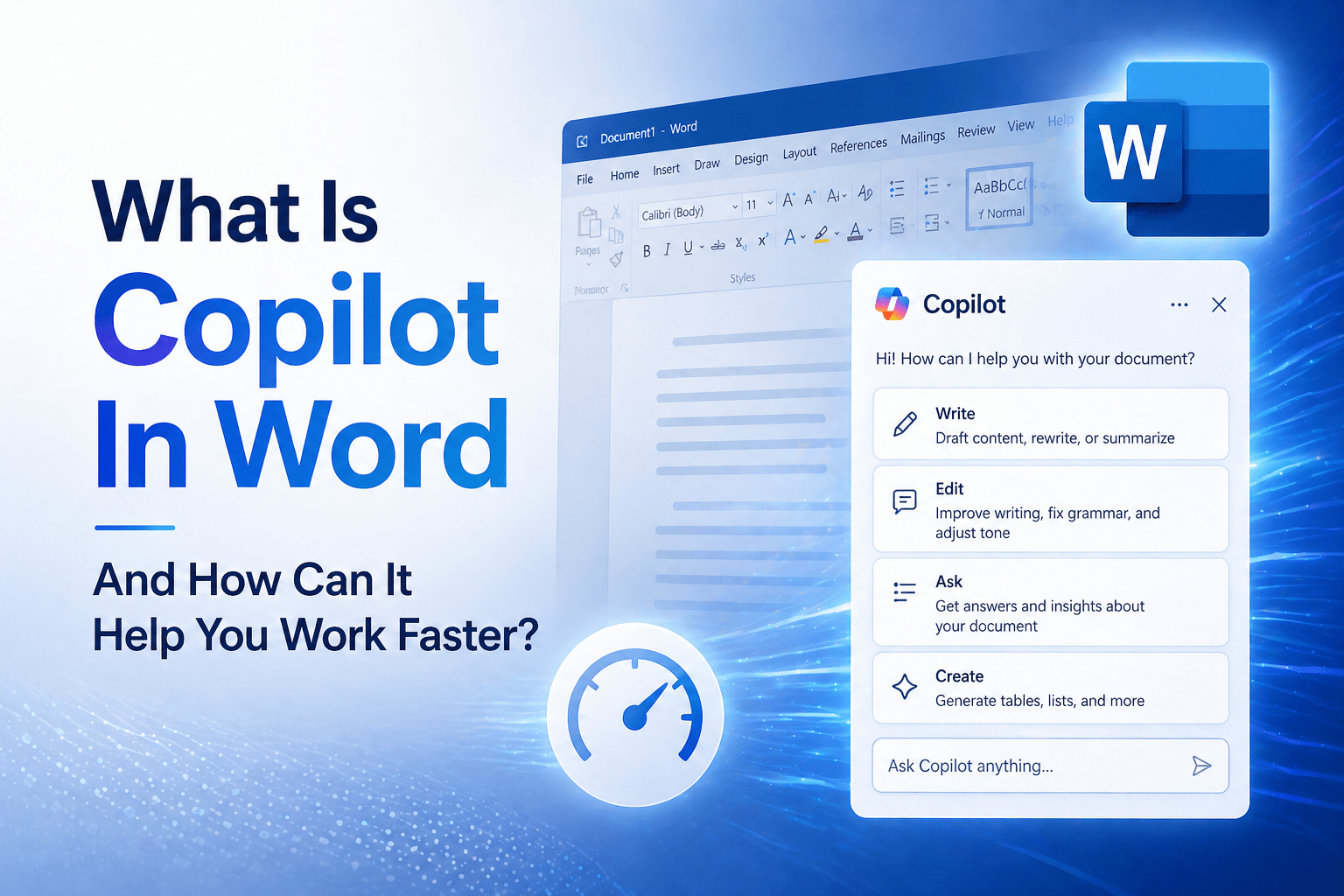
Copilot in Word is Microsoft’s AI writing assistant embedded directly in the Word application. It can draft documents from a prompt, rewrite or refine existing content, summarize long documents into key points, and answer questions about document content — all without leaving the Word interface.
The practical value depends on how it is used. Copilot in Word is not a replacement for the writer — it is a first-draft accelerator and editing assistant that reduces the time from “blank page” to “something to work with.” Writers who use it as a starting point and refine the output produce faster results than those who try to use it as a finished-draft generator.
Overview
Copilot in Word appears in two ways: as a drafting prompt at the top of new documents (inviting you to describe what you want written), and as an inline panel accessible through the Copilot button in the ribbon. It can reference your organizational content from SharePoint and OneDrive when generating drafts — drawing on actual documents from your organization rather than producing generic content. The quality of its output improves significantly when given clear prompts and organizational context.
- Copilot in Word drafts documents from descriptions and generates first drafts from existing content
- It rewrites, shortens, tones, and refines selected text on request
- It summarizes long documents into key points and action items
- It answers questions about document content in the Copilot panel
- It requires Microsoft 365 Copilot licensing (not included in all Microsoft 365 plans)
The 5 Why’s
- Why is “first draft from a blank page” specifically the highest-value Copilot in Word use case? The blank page problem is real and well-documented: starting from nothing requires overcoming inertia, deciding on structure, and generating initial content simultaneously. Copilot produces a draft in seconds that the writer can evaluate, revise, and improve — which is a fundamentally different (and faster) cognitive process than writing from scratch. Even if the Copilot draft requires significant revision, having something to react to is faster than creating something from nothing.
- Why does providing organizational document context specifically improve Copilot output quality? Generic prompts produce generic output. When Copilot can reference specific organizational documents — a prior project report, a relevant policy document, a previous proposal — it generates content that reflects your organization’s language, context, and prior decisions rather than a general approximation. The “reference a file” feature in Copilot’s drafting prompt is what unlocks this organizational grounding.
- Why is the rewrite capability specifically useful beyond just first-draft generation? Rewriting existing content — adjusting tone, condensing length, restructuring for clarity — is editing work that takes time and requires stepping back from content the writer is too close to. Copilot’s rewrite suggestions provide an outside perspective on existing content without requiring a human reviewer. For writers who know what they want to say but are not satisfied with how they have said it, rewrite is often the most immediately useful capability.
- Why does Copilot’s document summarization specifically save time in document-intensive workflows? Long reports, legal documents, research papers, and reference materials contain relevant information that takes time to read and extract. Copilot’s summarization capability generates key points and action items from long documents in seconds — enabling a reader to quickly identify whether a document contains what they are looking for before investing time in reading the full text. For decision-makers reviewing multiple documents, this time savings is significant.
- Why should Copilot output always be reviewed rather than used directly? Copilot generates plausible text — it does not verify accuracy, cannot know your specific intent, may introduce subtle errors, and reflects the training data and the prompt rather than the writer’s actual judgment. Organizational documents generated by Copilot without human review may contain factual errors, misrepresent organizational positions, or miss nuance that the writer would have included. Copilot accelerates writing; human review maintains quality.
Copilot in Word: Practical Use Cases
Drafting New Documents
How to use: open a new document; the Copilot prompt appears at the top. Describe the document you want: “Write a one-page summary of our Q3 IT infrastructure migration project, covering objectives, progress to date, and risks outstanding.”
Best results: provide specific context — project names, specific content requirements, desired length, and reference files from SharePoint or OneDrive when organizational context is needed.
Drafting from Reference Documents
How to use: in the Copilot drafting panel, reference an existing document: “Using the Q2 project report [file reference], draft a Q3 update covering the same sections.”
Best results: reference documents that contain the relevant organizational context, data, or content structure that the new document should reflect.
Rewriting Existing Content
How to use: select the text to rewrite; use the Copilot icon in the margin or the Copilot panel; request a rewrite with specific direction: “Rewrite this section to be more concise” or “Rewrite in a more formal tone.”
Best results: give specific rewrite direction. “Make it better” produces generic output. “Shorten to three sentences while retaining the main point” produces targeted results.
Summarizing Long Documents
How to use: open a long document; open the Copilot panel; ask “Summarize this document” or “List the key decisions and action items in this document.”
Best results: for very long documents, the summary will cover main points. For specific information, ask specific questions: “What does this document say about the timeline for Phase 2?”
Answering Questions About Document Content
How to use: with a document open, ask specific questions in the Copilot panel: “What are the risks identified in this report?” or “What does this contract say about termination conditions?”
Best results: ask specific factual questions about document content. Copilot retrieves and presents relevant sections rather than reasoning about implications.
What Copilot in Word Does Not Replace
- Subject matter expertise: Copilot does not know your business, your clients, or your domain better than you do — it generates text based on prompts and general training, not domain knowledge
- Accuracy verification: Copilot can introduce errors, outdated information, or plausible-sounding inaccuracies that must be verified before publication
- Strategic judgment: decisions about what to include, what to emphasize, and how to frame organizational communication require human judgment that Copilot cannot substitute
- Final review: all Copilot-generated content should be reviewed and edited by the owner of the document before sharing or publishing
Final Takeaway
Copilot in Word accelerates the drafting and editing process — reducing the time from blank page to working draft, making iterative revision faster, and enabling quick extraction of information from long documents. Organizations that use it as a first-draft accelerator with human review and refinement produce the best results. Those who expect finished, publication-ready output without review introduce quality and accuracy risks.
Deploy Microsoft 365 Copilot With Mindcore Technologies
Mindcore Technologies helps organizations deploy Microsoft 365 Copilot — including Copilot in Word — with the licensing, governance preparation, and user adoption support that produces measurable productivity value from AI investment.
Talk to Mindcore Technologies About Copilot in Word →
Contact our team to assess your readiness for Microsoft 365 Copilot and design the deployment that works for your organization.