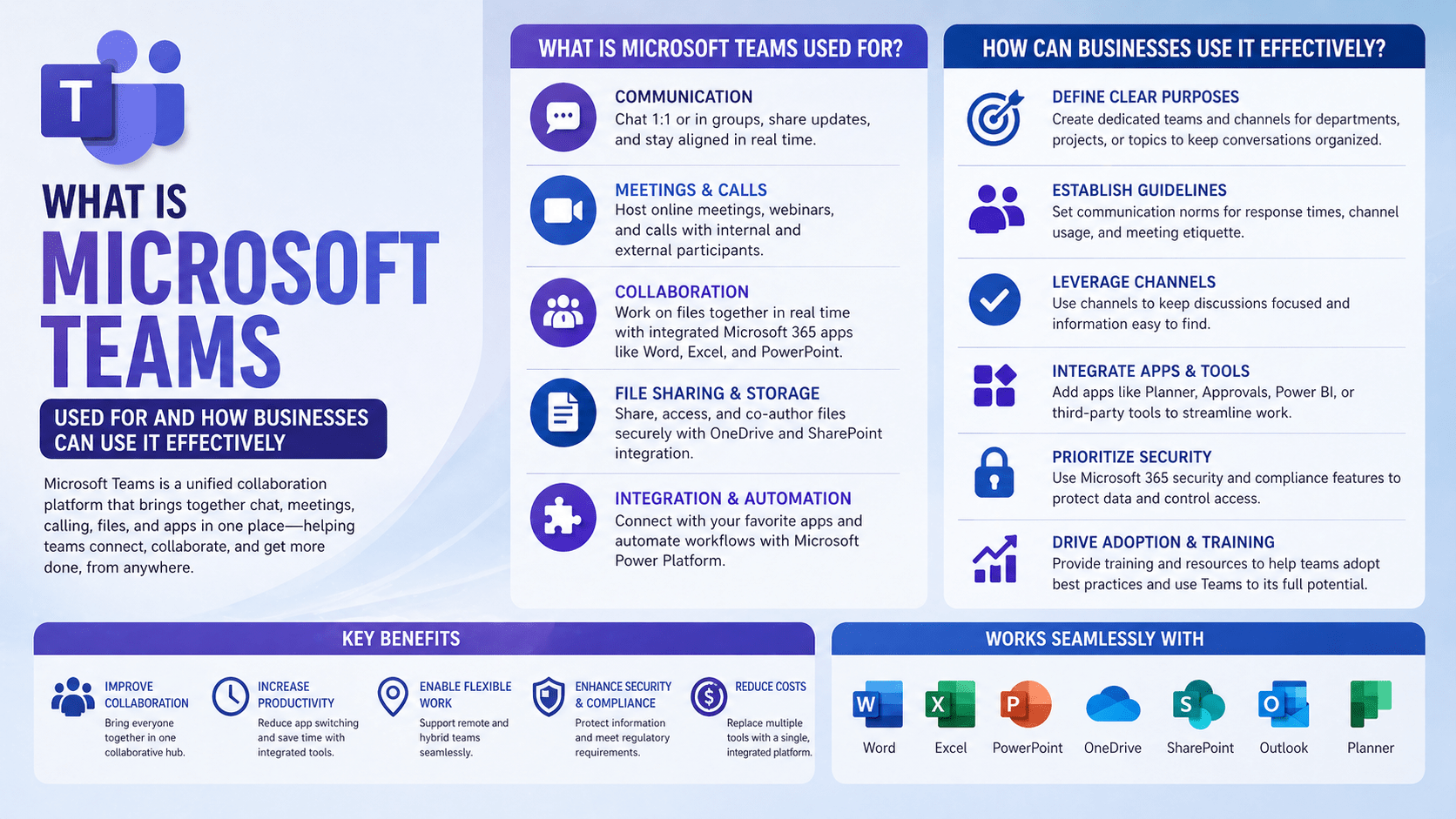
Microsoft Teams is a unified communication and collaboration platform — it combines persistent chat, video meetings, voice calling, file sharing, and application integration into a single environment. It is included in all Microsoft 365 business and enterprise plans and serves as the primary interface through which many organizations interact with the broader Microsoft 365 ecosystem.
What Teams is used for varies by organization. Some use it primarily for video meetings that replaced conference calls. Others use it as the communication hub where all team coordination happens. The most productive deployments use it as the platform that integrates communication, document collaboration, and the other tools teams use daily.
Overview
Teams organizes communication in two primary structures: channels (organized conversations within teams for topic-based communication) and chats (direct messages between individuals or small groups). Video meetings can be scheduled from the Teams calendar or started ad hoc. Files shared in Teams are stored in SharePoint (for channels) or OneDrive (for chats). Applications can be integrated into Teams as tabs, bots, or meeting extensions — making Teams a platform for accessing other tools without leaving the collaboration environment.
- Teams combines chat, meetings, calling, and files in one application
- Channels organize team communication by topic; chats handle individual and small group communication
- Files in Teams are stored in SharePoint and accessible from the SharePoint file library
- Meetings integrate with Exchange Online calendar and support recording, transcription, and Copilot
- Applications integrate into Teams — reducing context switching between tools
The 5 Why’s
- Why has Teams specifically become the central collaboration platform for most Microsoft 365 organizations? Teams sits at the intersection of all Microsoft 365 services — chat uses Exchange Online, files go to SharePoint and OneDrive, meetings use the Exchange calendar, and applications integrate through the Teams app store. Users who work in Teams access all of these services through a unified interface without switching between applications. That integration makes Teams the natural coordination point for organizations already invested in Microsoft 365.
- Why is Teams channel structure specifically important to plan rather than just letting it grow organically? Unplanned Teams channel proliferation creates an environment that is difficult to navigate — too many teams, overlapping purposes, channels that nobody monitors, and important information scattered across structures that have no coherent logic. A deliberate channel architecture — organized by team, project, or functional area with consistent naming conventions — makes Teams navigable and ensures that communication reaches the people it is intended for.
- Why does file sharing in Teams specifically connect to SharePoint rather than storing files only in Teams? Files shared in Teams channels are stored in SharePoint document libraries behind the scenes. This means those files are accessible from SharePoint directly, can be governed by SharePoint permissions and data loss prevention policies, participate in SharePoint’s version history and co-authoring features, and can be indexed by Microsoft Search. Understanding this connection helps organizations manage permissions and governance correctly.
- Why is Teams meeting recording and transcription specifically valuable for distributed and hybrid organizations? Meetings that are recorded and transcribed in Teams produce searchable, reference-able records of decisions, commitments, and context — which matters most for team members who were unavailable, who joined from different time zones, or who need to return to specific decisions made during a meeting. Transcription in particular produces a text record that is searchable without reviewing the full recording.
- Why does Teams as a platform (with integrations) produce more value than Teams as a video calling tool alone? Organizations that use Teams only for video meetings are using a small fraction of its capability. Teams integrations bring other tools — project management, CRM, IT service desk, HR, and hundreds of third-party applications — into the Teams interface, reducing the context switching that damages focus and productivity. The platform approach makes Teams the hub where work happens rather than one of many applications users switch between.
How Businesses Use Teams Effectively
Replacing Email for Internal Communication
Channels replace email threads for team coordination — specific topics have their own channels where context accumulates over time rather than being scattered across email threads in individual inboxes. Chat replaces email for quick individual exchanges. The result is communication that is visible to the whole team, organized by topic, and searchable.
Hybrid and Remote Work Coordination
Teams video meetings provide the face-to-face interaction that distributed teams need without requiring physical presence. Meeting recordings provide equity for participants across time zones. Channel communication gives remote employees the visibility into team activity that physical proximity previously provided.
Project Collaboration
Project-specific teams with channels organized around workstreams — Documents, Planning, Updates, Issues — create a collaboration space where project communication, files, and decisions are organized together rather than dispersed across email, shared drives, and separate project tools.
Client Communication
Teams Guest Access allows external collaborators — clients, vendors, partners — to be added to specific teams or channels. They can participate in meetings, access shared files, and communicate in the team without requiring a Microsoft 365 license, and without the organization providing broader access to internal systems.
Integration With Business Tools
Teams integrates with hundreds of applications: Jira, Salesforce, ServiceNow, Planner, Power BI, and more. Notifications from those systems surface in Teams, actions can be taken from within Teams, and dashboards can be displayed as tabs in Teams channels — reducing the number of applications users need to actively monitor.
Teams Best Practices
- Establish naming conventions before Teams proliferates — consistent team and channel names make the environment navigable
- Limit channel creation permissions to prevent hundreds of underused channels
- Use pinned tabs in channels for frequently accessed files, apps, or links
- Set channel notifications appropriately — not every user needs to be notified of every channel message
- Archive rather than delete teams when projects conclude — preserves the record without cluttering active navigation
- Train users on the difference between channels (persistent, topic-based) and chat (ephemeral, person-to-person) — misuse of one for the other creates disorganized communication
Final Takeaway
Microsoft Teams is most effective when it is the hub through which work happens — not just a video calling tool or a chat application, but the integrated environment where team communication, document collaboration, and the tools teams use are connected. Achieving that requires deliberate structure, governance of how Teams is configured, and user adoption that reflects Teams’ full capabilities.
Optimize Microsoft Teams for Your Organization With Mindcore Technologies
Mindcore Technologies helps organizations design Teams governance structures, configure integrations, and train users — producing a Teams deployment that improves productivity rather than adding communication complexity.
Talk to Mindcore Technologies About Microsoft Teams →
Contact our team to assess your current Teams deployment and identify the changes that would improve how your organization uses it.