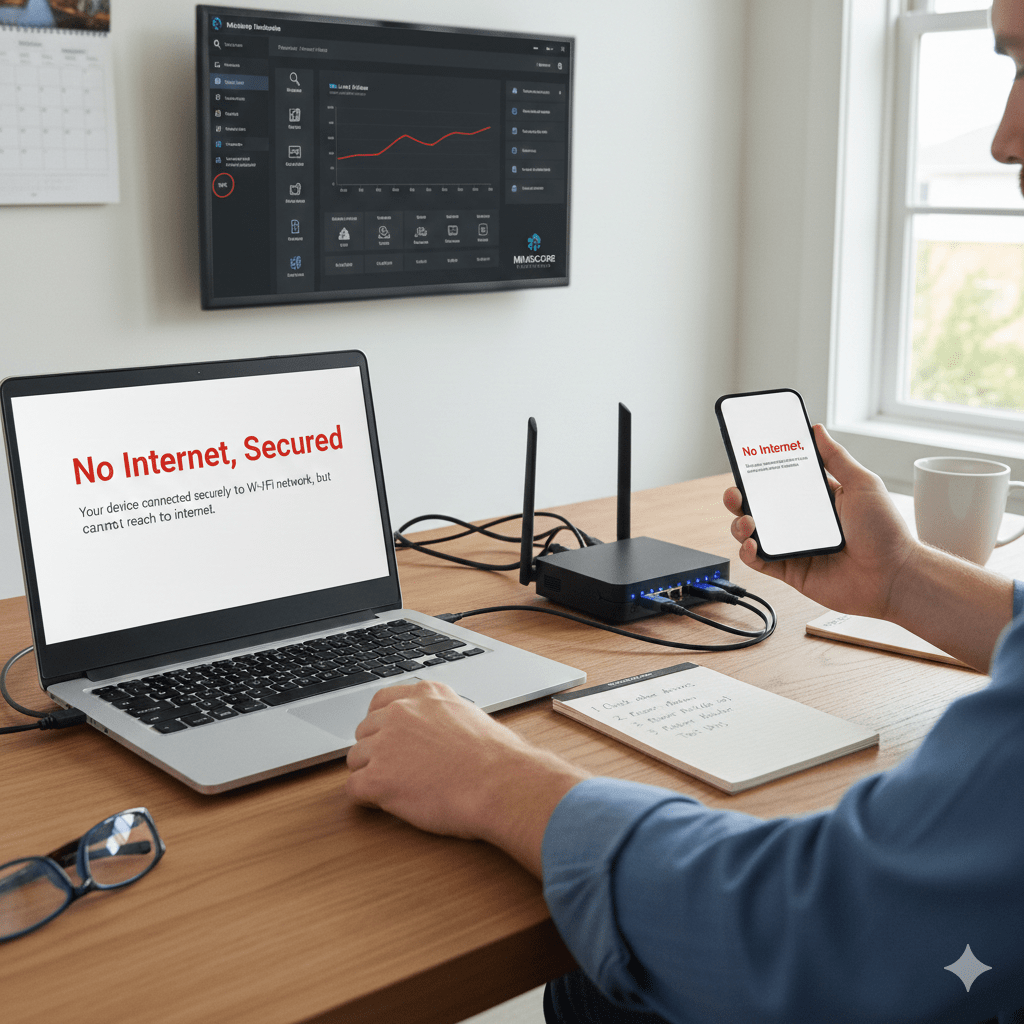
“No Internet, Secured” is not a contradiction. It means your device is securely connected to the local Wi-Fi, but that network cannot reach the internet. The wireless link is fine. The upstream path is broken.
At Mindcore Technologies, we see this message during ISP outages, gateway misconfigurations, DNS failures, and intentional security enforcement. Fixing it is about identifying which layer failed, not guessing.
What This Message Actually Confirms
- Secured: Your device authenticated successfully to Wi-Fi (encryption and password are valid).
- No Internet: The router or gateway cannot reach the internet (or is blocking access).
Local connectivity works. External connectivity does not.
Most Common Causes (In Order)
1) ISP or Modem Outage
Signs: All devices affected; Wi-Fi stays connected; no sites load.
Fix: Power-cycle the modem (off 60 seconds), then router. Check ISP status.
2) Router Lost Its WAN Link
Signs: Router looks “up,” but WAN shows disconnected.
Fix: Restart router; verify WAN settings; update firmware if accessible.
3) DNS Failure
Signs: Browsers report no internet; IP-based tests may work.
Fix: Restart router/device; temporarily switch DNS; check gateway rules.
4) Captive Portal Not Completed
Signs: Common on hotels/guest Wi-Fi; internet blocked until login.
Fix: Open a browser and visit a non-HTTPS site to trigger the portal.
5) Firewall or Security Policy Blocking Outbound
Signs: Common at work; only some devices affected.
Fix: Check gateway alerts; verify outbound rules; confirm device posture.
6) IP/Gateway Misconfiguration
Signs: Self-assigned IP; missing default gateway.
Fix: Renew IP; restart adapter; ensure DHCP is running.
Quick Triage: Is It Wi-Fi or Internet?
- Likely Internet: All devices show the same message; local resources still reachable.
- Likely Wi-Fi/Device: Only one device affected; signal drops; moving closer helps.
Diagnose the layer before changing settings.
Step-by-Step Fix (Safe Order)
- Check another device on the same network
- Restart the modem (wait 60 seconds)
- Restart the router
- Test DNS (or temporarily change DNS)
- Open a browser to trigger captive portal (public Wi-Fi)
- Review firewall/gateway alerts (business networks)
Avoid factory resets unless directed.
Security Scenarios to Consider (Business Networks)
Sometimes this status is intentional:
- Device quarantined for policy violations
- Failed posture checks (updates, endpoint protection)
- Conditional access blocking external traffic
If only one work device is affected, contact IT before changing settings.
Why Restarting “Works” (Sometimes)
Restarts renew ISP leases, clear routing/DNS states, and restart stalled services. Helpful—but recurring issues point to design or monitoring gaps.
How to Prevent This Going Forward
- Use business-grade routers and keep firmware current
- Monitor WAN/DNS health with alerts
- Add backup internet/failover where uptime matters
- Keep firewall rules clean and intentional
- Separate Wi-Fi security from internet troubleshooting
How Mindcore Technologies Helps
Mindcore designs networks that make this message rare—and easy to explain—by implementing:
- Redundant internet and failover
- Clear separation of Wi-Fi and WAN layers
- Resilient firewall and DNS design
- Proactive monitoring and alerting
Final Takeaway
“No Internet, Secured” means Wi-Fi is fine; the path beyond it is not. Fixing it is about checking the upstream link, DNS, and policy enforcement, in that order. When this message appears often, it’s a visibility or resilience problem—not a password problem.