

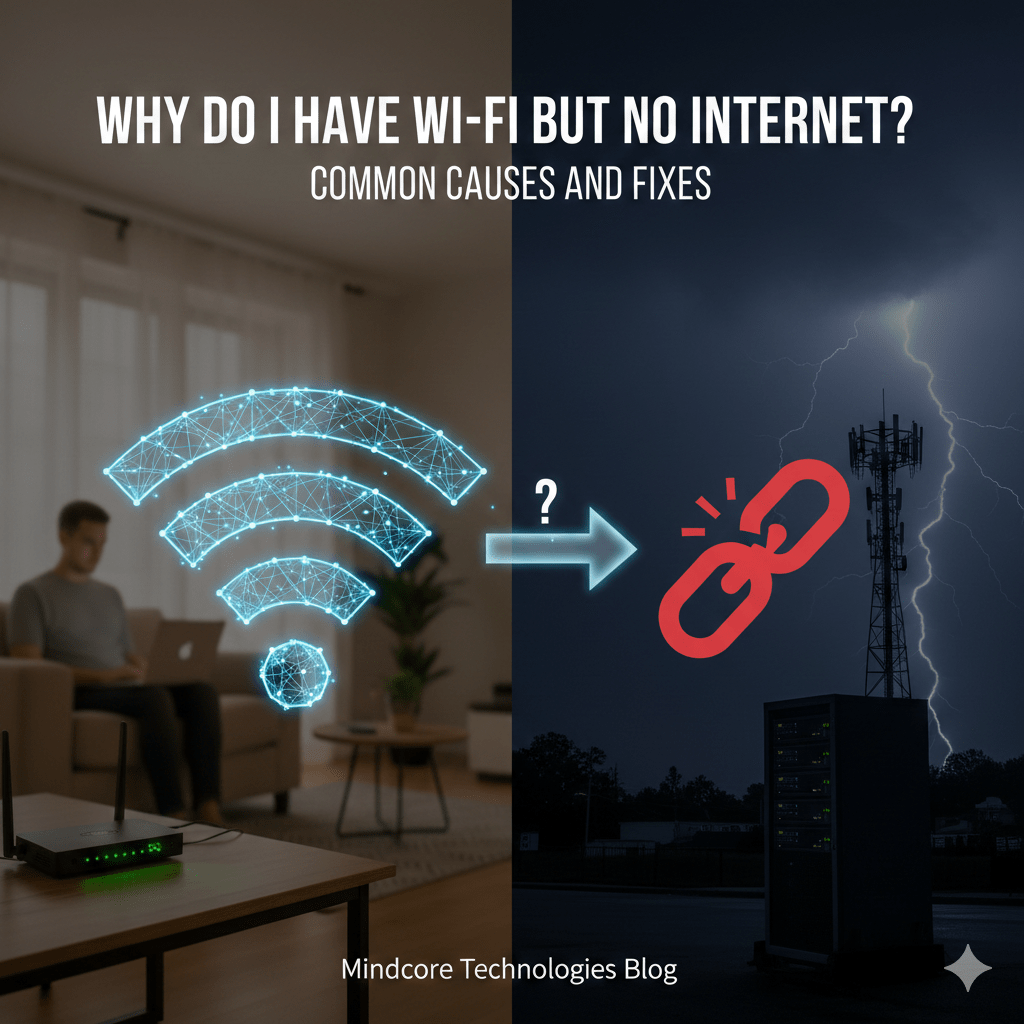
Having Wi-Fi but no internet is one of the most common and misunderstood connectivity problems. It feels contradictory, but technically it makes perfect sense. Your device is connected to a local network, but that network cannot reach the internet.
At Mindcore Technologies, this scenario shows up during outages, misconfigurations, security enforcement events, and ISP failures. Knowing where the break actually is saves time and prevents unnecessary resets or hardware replacement.
This guide explains the real causes behind “connected but no internet” and the safest, fastest ways to fix it.
What “connected but no internet” Actually Means
Wi-Fi and internet are two separate layers:
- Wi-Fi connects your device to a local router or access point
- Internet connects that router to the outside world via an ISP
When Wi-Fi works but internet does not:
- Your device can talk to the router
- The router cannot talk to the internet
Local connectivity is intact. Upstream connectivity is broken.
The Most Common Causes (Ranked by Frequency)
1. ISP or Modem Outage
An ISP or modem outage is a leading reason users see they are connected but no internet, even though the local Wi-Fi remains active.
Symptoms:
- All devices affected
- Wi-Fi shows connected
- No websites load
Fix:
- Check ISP outage status
- Restart the modem (power off for 60 seconds)
- Contact the ISP if the issue persists
2. Router Lost Its Internet Connection
Routers can lose WAN connectivity even if they appear normal.
Common reasons:
- Expired ISP lease
- Firmware bugs
- Temporary routing failure
Fix:
- Restart the router
- Check WAN or Internet status in router settings
- Update firmware if available
3. DNS Failure
The internet may be reachable, but names cannot be resolved.
Signs:
- Browsers say “no internet”
- IP-based sites may work
- Apps fail inconsistently
Fix:
- Restart router and device
- Temporarily change DNS servers
- Check firewall or security appliance rules
4. Captive Portal or Authentication Issue
Common on public, hotel, or guest Wi-Fi.
What happens:
- You are connected but not authorized
- Internet access is blocked until login
Fix:
- Open a browser
- Visit a non-HTTPS site to trigger the login page
- Complete authentication
5. Firewall or Security Device Blocking Traffic
Common in business networks.
Causes:
- Overly restrictive outbound rules
- Expired licenses
- Security policy enforcement
Fix:
- Check gateway or firewall alerts
- Verify outbound access rules
- Fail over to backup internet if available
6. IP Address or Gateway Problems
Your device may be connected but misconfigured.
Symptoms:
- Self-assigned IP address
- Missing default gateway
- Limited connectivity warnings
Fix:
- Renew IP address
- Restart network adapter
- Verify DHCP service is running
How to Tell If the Problem Is Wi-Fi or Internet
It’s Likely Wi-Fi If
- Only one device is affected
- Signal strength is weak
- Moving closer to the router helps
It’s Likely Internet If
- All devices show the same issue
- Wi-Fi stays connected
- Local resources still work
This distinction prevents wasted troubleshooting.
Why Restarting Sometimes “Fixes” It
Restarting:
- Renews ISP connections
- Clears routing tables
- Resets DNS resolution
- Restarts stalled services
It works often, but it does not address root causes if the problem is recurring.
Security-Related Reasons This Can Happen
In business environments, “connected but no internet” may be intentional.
Possible reasons:
- Device quarantine due to policy violation
- Failed security posture check
- Access restricted by conditional access rules
If only one device is affected at work, security enforcement is a strong possibility.
Quick Safe Fix Checklist (In Order)
- Check if other devices are affected
- Restart modem (wait 60 seconds)
- Restart router
- Test a different network if possible
- Check ISP status
- Review firewall or gateway alerts
Avoid factory resets unless absolutely necessary.
Why Businesses See This More Often Than They Should
Frequent occurrences usually indicate:
- Single points of failure
- No backup internet
- Poor monitoring
- Overly complex security rules
The message is not the problem. Lack of visibility is.
How Mindcore Technologies Prevents This Scenario
Mindcore helps organizations reduce “Wi-Fi but no internet” issues by implementing:
- Redundant internet connections
- Proper gateway and ISP monitoring
- Clean firewall and routing design
- Secure but resilient access controls
- Alerting before users are impacted
Well-designed networks fail gracefully and predictably.
A Simple Reality Check
If you cannot quickly answer:
- Is this a Wi-Fi issue or an internet issue?
- Is it device-specific or network-wide?
- Where would I check first?
Your network lacks operational clarity.
Final Takeaway
Seeing connected but no internet is not confusing: it confirms that local Wi-Fi is functioning while the network’s access to the internet is broken, highlighting where visibility or redundancy improvements are needed. The cause is usually an ISP issue, routing failure, DNS problem, or security enforcement, not the Wi-Fi signal itself.
Understanding this distinction saves time, prevents unnecessary resets, and helps businesses design more resilient networks that fail less often and recover faster.
Frequently Asked Questions
Why do I have Wi-Fi but no internet access?
This usually means your device is connected to the local wireless network, but the network itself cannot reach the internet due to ISP outages, router issues, DNS problems, or network configuration errors.
What are common causes of Wi-Fi with no internet?
Common causes include modem or router failures, internet service provider outages, expired IP configurations, DNS issues, firewall conflicts, outdated drivers, or network congestion. Businesses using managed IT monitoring services can identify and resolve connectivity problems faster before operations are disrupted.
How can users troubleshoot Wi-Fi with no internet access?
Users can restart the modem and router, reconnect to the network, restart devices, renew IP settings, update network drivers, test other devices, and verify whether the ISP is experiencing service disruptions. Understanding whether the issue is local Wi-Fi or upstream internet connectivity helps narrow troubleshooting faster.
Can cybersecurity tools affect internet connectivity?
Yes. VPNs, firewall settings, DNS filtering, endpoint security software, and network access controls can sometimes interfere with internet connectivity if configured incorrectly. Organizations implementing strong cybersecurity governance should regularly validate security policies and connectivity rules.
Why is reliable internet connectivity important for businesses?
Reliable connectivity supports cloud applications, communication systems, cybersecurity monitoring, remote work, collaboration platforms, and operational continuity across business environments. Organizations implementing resilient cloud infrastructure strategies improve uptime, visibility, and long-term operational stability.
Network Infrastructure and Connectivity Expertise from Matt Rosenthal
Matt Rosenthal, CEO of Mindcore Technologies, has extensive experience helping organizations strengthen network infrastructure, operational continuity, and secure connectivity across modern business environments. His expertise in network architecture, cloud connectivity, secure remote access, infrastructure scalability, cybersecurity governance, and managed IT services helps businesses improve operational reliability while reducing downtime and connectivity-related risks. Matt’s leadership focuses on building proactive infrastructure strategies that strengthen network performance, improve operational visibility, reduce enterprise risk, and support scalable long-term business growth.

