In order to keep your HP laptop in an effective working condition, you have to manage its storage optimally if you are going to work with heavy files, downloads, or large application installation. One useful option is Storage Sense for pc, which automatically removes unnecessary files to improve storage management. However, is it worth enabling Storage Sens on your HP laptop? This guide discusses the pros and cons to help decide if the feature works well for one’s laptop in terms of performance and storage needs.
What is Storage Sense?
Windows 10 and 11 have the built-in functions that answer the question “what is storage sense”, managing and freeing space on your device automatically. It cleans temporary files, old download files, or even files you no longer need from the Recycle Bin. Activating Storage Sense for pc allows Windows to manage unnecessary files automatically, which is useful for people who do not perform regular manual cleanups.
Once activated, what is Storage Sense becomes a background tool that runs periodic scheduled clean-ups automatically, keeping your device optimized without intervention. This automation means that you can be assured of the laptop always running at optimal efficiency without manual intervention.
Why is Storage Management Important?
Effective and efficient storage management is paramount for keeping your laptop running smoothly and extending its life, especially when combined with a zero trust secure workspace platform like ShieldHQ to ensure performance and security work together. After repetitive downloads, app installations, and creating new documents, the internal storage space can get considerably cluttered. This mess gives rise to the following problems: slowness, long booting time, and difficulty in accessing important files.
Understanding what is storage sense shows that it is a real asset for your computer, helping keep the device clean, organized, and storage-efficient. With increased free space, your laptop can run smoothly without giving low storage warnings and distracting you from your work.
How to Activate Storage Sense on Your HP Laptop
To activate Windows Storage Sense, the process is simple and can be completed in just a few seconds:
- Go for the Settings Menu: The first step is to go to the Start menu and click on that gear icon for Settings.
- Navigate to System > Storage: In the Settings menu, select “System,” then click on “Storage” from the sidebar.
- Toggle the Storage Sense Switch to “On”: You will see a toggle switch for Storage Sense. Click it to turn it on.
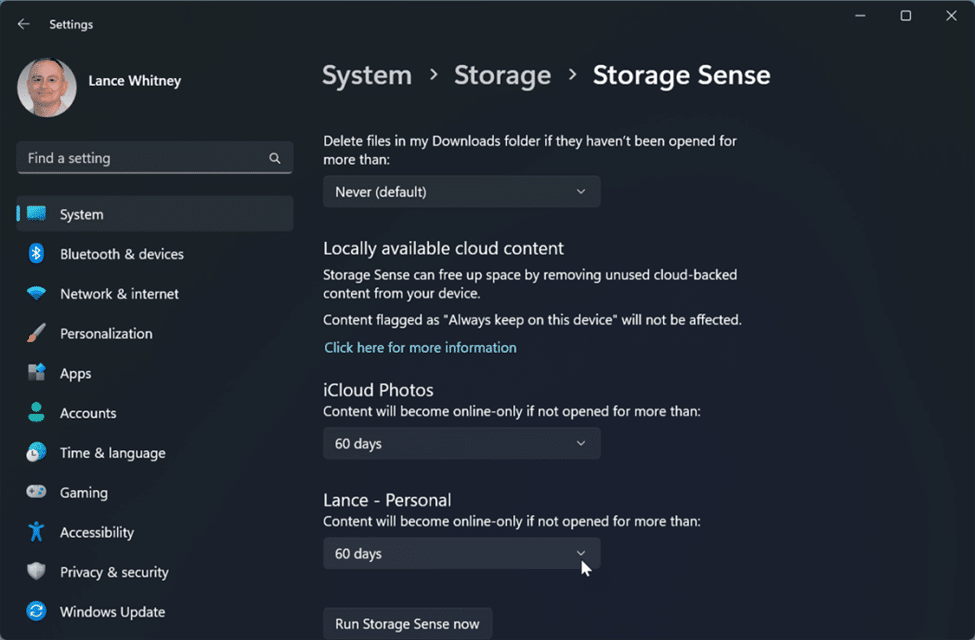
- Clean Up Preferences: The next thing to do after activating Storage Sense is to specify how you would like it to behave. Indicate how often you want the storage sense to run as daily, weekly, or monthly. After that, select types of file to delete: temporary files, downloads older than a specific threshold, or files in the recycle bin.
With the above steps, you can make sure that your HP laptop performs and saves the most necessary storage.
Pros of Activating Storage Sense
1. Automated Cleanup
The primary benefit of Storage Sense for pc is its ability to automate routine file cleanup. It makes the system bring in unneeded files on its own and prevents you from having to clean up your disk manually. This assures that your HP laptop has plenty of space for necessary work.
2. Improved Performance
By understanding what is storage sense, you can see how removing temporary files and clearing cache enhances your laptop’s performance and responsiveness. A clutter-free storage system helps your device run more smoothly, especially when dealing with large applications or multitasking.
3. Saves Time
With the automatic management of storage by Storage Sense, one can do their work uninterrupted, as it leaves time for entertainment not spent managing the digital storage space. For busy professionals and students, this saves a lot of time.
4. Customizable Settings
Storage Sense allows you to have control over how it operates. For instance, you can choose:
- How frequently it runs (daily, weekly, or monthly).
- Which files it deletes (e.g., temporary files, downloads, Recycle Bin).
- Whether to remove cloud files stored locally that haven’t been accessed recently.
5. Prevents Storage Overload
Storage Sense keeps the available space on your HP laptop full all the time, saving the user from eventually running out of space. It is great for those who build massive files through downloading or installing new applications.
Cons of Activating Storage Sense
1. Risk of Accidental File Deletion
A major drawback would be the very real possibility of deleting files that may still be totally needed, especially if they are in the Downloads folder or the Recycle Bin. Review the Storage Sense for pc settings carefully to prevent important files from being deleted accidentally.
2. Cloud File Management Issues
If you happen to rely on OneDrive or other cloud storage services with the Storage Sense enabled, the last accessed files will no longer be locally stored since after a certain time it will change to cloud storage. While this is space-saving, it could present challenges when you need to access these files offline, as you will have to download them again when needed.
3. Not Ideal for Large Storage Drives
For HP laptops equipped with large SSDs or HDDs, the benefits of Storage Sense may be minimal. If you rarely encounter storage issues, the feature might not be necessary for you.
4. Limited Cleanup Options
While Storage Sense automates basic cleanup tasks, it doesn’t address deeper storage issues, such as duplicate files or unused applications. For comprehensive storage management, you may still need to use third-party tools or perform manual cleanups.
When Should You Activate Storage Sense?
Storage Sense for pc can be a valuable tool for users who want automated storage management, but it may not suit everyone. Here are some scenarios where activating it makes sense:
Activate Storage Sense If:
- Your laptop frequently runs out of storage space.
- You prefer automated solutions for file cleanup.
- You don’t store critical files in the Downloads folder or Recycle Bin for long periods.
- You rely on OneDrive or other cloud services and don’t mind offloading files.
Avoid Storage Sense If:
- You manage storage manually and prefer complete control.
- You often need offline access to files stored in the cloud.
- Your laptop has a high-capacity storage drive that rarely fills up.
Additional Tips for Managing Storage on Your HP Laptop
If Storage Sense doesn’t fully meet your needs, consider these additional strategies for effective storage management:
1. Regular Manual Cleanups
Periodically delete unnecessary files, such as old downloads, large email attachments, or unused applications. Regular cleanups can help keep your laptop running efficiently.
2. Use Disk Cleanup Tools
Windows comes standard with a built-in Disk Cleanup feature to free up space. This would typically release some space for files on items like system files, temporary files and other various things.
3. Expand Your Storage
If the storage in the HP laptop is consistently low, add an external drive for additional space or upgrade the SSD. Expansion of space in this way allows for more flexibility of files and applications.
4. Utilize Cloud Storage
Generally, using OneDrive, Google Drive, and Dropbox keeps the files online and then cuts space on a local computer. This is how cloud storage can help a user keep essential documents without having them weigh down their laptop’s storage.
Conclusion
Windows Storage Sense is a powerful and convenient tool for managing storage on your HP laptop. It offers automation, improved performance, and time savings, making it an excellent choice for users who frequently face low storage issues or prefer a hands-off approach to maintenance. On the other hand, this option may not suit users who need excessive file control and heavily depend on offline access to their data in cloud files.
Storage sense is one wonderful way to keep the HP laptop clean and lean, plus functioning well. Activate the storage sense and customize it to your specifications so that the rest is handled by the feature. For those who need more advanced storage solutions, combine understanding what is storage sense with manual cleanups and external storage options to get the best of both worlds.
Start managing your storage today and enjoy a faster, more efficient laptop experience!
Frequently Asked Questions
What is Storage Sense on an HP laptop?
Storage Sense is a built-in Windows tool that automatically deletes temporary files, clears the recycle bin, and manages system storage. On HP laptops, it helps free up space and keep performance steady.
What are the benefits of using Storage Sense on HP laptops?
The main advantages are automatic space management, improved performance, and less need for manual cleanups. For users with limited storage, Storage Sense ensures the system stays optimized without constant monitoring.
What are the drawbacks of activating Storage Sense?
The downside is that Storage Sense can delete files you intended to keep, such as downloads or temporary project files. Users must adjust settings carefully to avoid losing important data.
Is Storage Sense recommended for business users on HP laptops?
Yes, but with customized settings. Business users often deal with sensitive files, so configuring Storage Sense to exclude critical folders ensures it helps with efficiency while avoiding accidental deletions.
Can Mindcore help businesses manage storage and performance on laptops?
Yes. Mindcore provides managed IT services that include system optimization, data management, and performance monitoring. We help businesses keep devices running efficiently while ensuring critical files remain secure.
Frequently Asked Questions
What is Storage Sense on an HP laptop?
Storage Sense is a built-in Windows 10 and 11 feature that automatically frees storage by removing temporary files, clearing older Recycle Bin items, and managing selected local content. On HP laptops, it can reduce manual cleanup and help maintain available disk space over time.
Storage Sense runs according to configured cleanup preferences. Users can choose how frequently it operates and determine whether it removes temporary files, older Downloads, Recycle Bin content, or locally stored cloud files.
Should you activate Storage Sense on an HP laptop?
You should activate Storage Sense if your HP laptop frequently runs low on space, you prefer automated cleanup, and you do not rely on Downloads or Recycle Bin items for long-term storage. It is less useful if you prefer manual control or rarely encounter storage limitations.
Users with limited disk capacity may benefit most from automatic cleanup. Those with large drives, strict file-retention needs, or frequent offline access requirements may prefer more conservative settings or manual storage management.
What are the benefits of using Storage Sense?
Storage Sense can save time, automate routine cleanup, free disk space, and reduce low-storage warnings by removing unnecessary files on a schedule. It can also help users maintain a cleaner storage environment without repeatedly performing manual maintenance, especially on laptops with limited available capacity.
Users can customize how frequently Storage Sense runs and which types of files it manages. This allows the feature to automate basic storage maintenance while retaining some control over cleanup behavior.
What are the drawbacks of activating Storage Sense?
The main drawbacks of Storage Sense are the risk of deleting files you still need, reduced control over cleanup timing, and potential loss of offline access to cloud files that are offloaded. Users should review cleanup settings carefully before enabling automatic deletion for Downloads or Recycle Bin content.
The feature also does not address every storage problem. Duplicate files, unused applications, and deeper storage-management issues may still require manual cleanup or other management tools.
How should businesses manage Storage Sense across multiple laptops?
Businesses should manage Storage Sense with standardized endpoint policies so cleanup schedules and deletion rules stay consistent across devices. Administrators should define which files can be removed, protect critical folders, account for offline access needs, and monitor storage health to reduce accidental data loss or inconsistent device performance.
Business environments should avoid relying on individual users to configure cleanup independently. Consistent policies help maintain predictable storage behavior while protecting important files and supporting endpoint performance across the organization.
Matt Rosenthal’s Expertise in Storage Management and Laptop Optimization
Matt Rosenthal, CEO of Mindcore Technologies, brings decades of IT, endpoint, cybersecurity, and cloud leadership experience. He helps organizations understand how automated tools like Storage Sense can improve disk performance, maintain storage efficiency, and reduce manual maintenance. Under his leadership, businesses optimize laptops, configure storage policies, and ensure endpoint reliability across workforces Managed IT & Device Management.