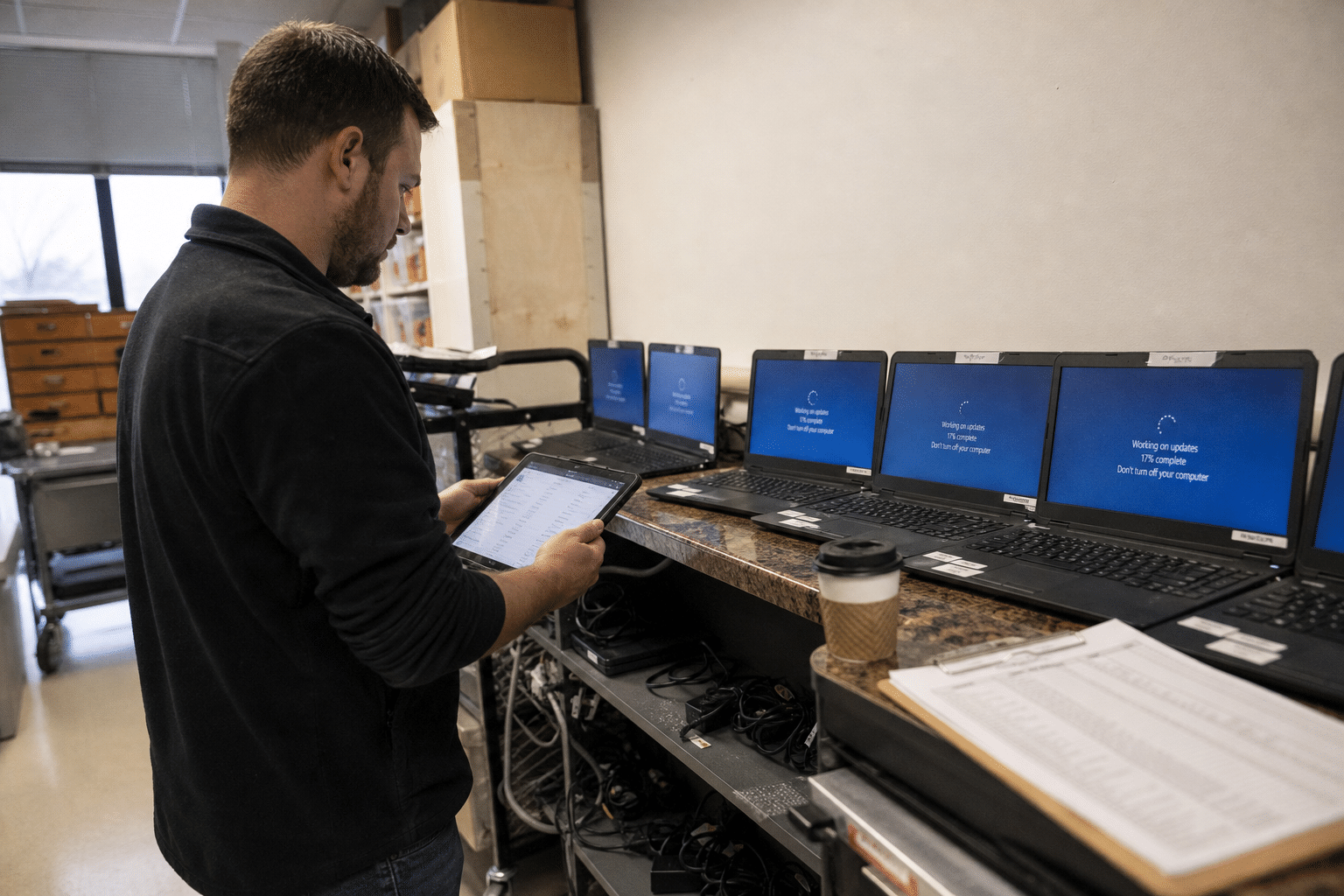
The Windows 11 version lifecycle gives every annual release a fixed end-of-servicing date, after which PCs on that version stop receiving security updates even though Windows 11 itself is still supported. Microsoft reminded customers in October 2026 that Windows 11 version 23H2 Enterprise and Education editions reach end of servicing on November 10, 2026, with that month’s update as the last. Home and Pro editions of 23H2 had already passed the same point a year earlier. Many small businesses do not realize this applies to them. They finished the Windows 10 migration, assume Windows 11 is current by definition, and leave version upgrades to Windows Update. Then an audit, an insurer questionnaire or a vulnerability scan shows a group of PCs that quietly stopped getting patches months ago. This article explains how the lifecycle works and sets out five rules our team uses to keep client fleets inside it.
Overview: Five Points About Windows 11 Versions
Windows 11 is a service with yearly releases, not a single product. These five points frame the rules that follow.
- Each release has its own end date. Version 23H2, 24H2 and 25H2 each retire on their own schedule.
- Edition changes the date. Enterprise and Education editions get 36 months of servicing; Home and Pro get 24.
- A supported operating system can still run an unsupported version. “We are on Windows 11” says nothing about whether a PC is patched.
- Feature updates do not always install themselves. Policies, deferrals, hardware blocks and incompatible apps leave PCs behind.
- Planning beats chasing. One scheduled upgrade project per year costs less than emergency upgrades after a cutoff.
How the Windows 11 Version Lifecycle Actually Works
The Windows 11 version lifecycle releases one feature update a year, usually in the second half, and services each release for a fixed period that depends on the edition installed.
Version names describe timing: 23H2 shipped in the second half of 2023, 24H2 in 2024 and 25H2 in 2025. Microsoft’s published release information shows the servicing window for each. For 25H2 Enterprise and Education, servicing runs to October 2028. For 24H2, Home and Pro servicing ended in October 2026, while Enterprise and Education continue to October 2027.
Does the edition really matter for a small business?
Many small businesses assume they run Pro, and many do. Others moved to Enterprise through Microsoft 365 Business Premium or E3 licensing without noticing, because the upgrade happens through activation. The opposing assumption, that edition is a detail only large companies track, causes the mistake: a business plans around the Pro date while its PCs run Enterprise, or the reverse. Check the edition on a sample of machines before you set any deadline.
What happens at end of servicing
The PC keeps working. It stops receiving monthly security updates, preview updates and support for that release. Every vulnerability published afterward stays open on those machines, which is how a fleet ends up failing a vulnerability management process without any visible symptom.
Why this feels different from the Windows 10 deadline
The Windows 10 end of support was a single, heavily publicized date with an extended security update program for organizations that needed time. Windows 11 version retirements happen every year with little attention, and there is no paid extension for an old Windows 11 version. The only fix is upgrading.
Rule 1 and 2: Keep a Version Inventory and Know Your Editions
A version inventory lists every PC’s Windows edition, version and build, so the business knows which machines approach a cutoff before it arrives.
Where the inventory comes from
If PCs are enrolled in Microsoft Intune or another mobile device management platform, the version and edition are already reported. Export them monthly. Businesses without device management can collect the same data with a short script or their remote monitoring tool, but should treat the lack of management as the larger problem.
Group machines by deadline, not by department
Sort the inventory by version and edition, then add the end-of-servicing date beside each group. The view that matters is “which PCs lose updates in the next six months,” because that list becomes your upgrade backlog.
Should old PCs be upgraded or replaced?
Some PCs fail Windows 11 hardware requirements for newer versions or run so slowly that an upgrade would hurt productivity. Replacing them costs more up front. Keeping them forces exceptions that weaken the whole fleet. We usually recommend upgrading anything under four years old and budgeting replacement for the rest within the same cycle.
Rule 3: Schedule the Annual Windows 11 Feature Update as a Project
The annual Windows 11 feature update should be scheduled like any other project, with a pilot group, a test window and a completion date well before the older version’s cutoff.
Why not let Windows Update handle it?
Windows Update does offer feature updates, and for unmanaged home PCs that often works. Business fleets are different. Group Policy or Intune deferral settings, safeguard holds that Microsoft applies when it detects a compatibility issue, and users who postpone restarts all leave machines behind. A project with a named owner and a deadline catches the stragglers. Our project management approach treats the upgrade like any other change with a test plan.
Use update rings
Update rings stage rollout: a small pilot ring of IT staff and willing users first, then a broad ring, then a final ring for sensitive machines such as finance or front-desk PCs. Each ring waits a set number of days after the previous one. Rings catch application problems before they reach the whole company.
Pick the target version deliberately
When choosing a target, prefer the newest broadly available release, because it carries the longest servicing window. In late 2026 that means 25H2 for most existing PCs. Skipping to the newest release also means fewer upgrade projects over the life of the hardware.
Rule 4: Test Line-of-Business Applications Before the Broad Rollout
Line-of-business application testing is the step that turns a feature update from a risk into a routine, because most upgrade failures come from software, drivers and security agents rather than Windows itself.
What to test
List the applications each department cannot work without: accounting software, practice management systems, scanning and printing utilities, VPN clients and security agents. Install the target version on a pilot machine per department and have a real user run a normal day’s tasks.
Check vendor support statements
Line-of-business vendors publish which Windows versions they support. A vendor that has not certified the target version is a risk to raise early, not on the day a cutoff passes. Network-dependent tools also need a check, which our network management team includes in pilot testing.
Plan for the user experience
Feature updates can move settings, change default apps or require a longer restart. A short note to staff before their ring upgrades prevents support tickets and keeps people from postponing restarts indefinitely.
Rule 5: Report Compliance Monthly and Close Exceptions
Version compliance reporting closes the loop by showing every month how many PCs are on a supported version and which exceptions remain.
What a useful monthly report contains
Count of PCs by version and edition, the number on an unsupported or soon-to-expire version, and a named reason and owner for each exception. That report also answers the questions cyber insurers and auditors now ask about patch status, and it pairs with the wider practices in our patch management guide.
How to handle machines that cannot upgrade
Some PCs run equipment software that a vendor has not updated. Isolate them on a separate network segment, restrict internet access, document the exception and set a replacement date. An undocumented exception becomes the machine an attacker finds first.
Keep Microsoft 365 apps aligned
Microsoft 365 Apps has its own update channels and support requirements tied to the Windows version. Keeping the operating system current avoids office application support issues, a topic we touch on in our piece about Office 365 management.
Frequently Asked Questions
When does Windows 11 23H2 stop getting updates?
Home and Pro editions of 23H2 reached end of servicing in November 2025, and Enterprise and Education editions reach it on November 10, 2026. After that date, PCs on 23H2 receive no security updates.
How long is each Windows 11 version supported?
Home and Pro editions receive 24 months of servicing per annual release, while Enterprise and Education editions receive 36 months. Check Microsoft’s release information for exact dates.
Which Windows 11 version should we upgrade to?
Upgrade to the newest broadly available release, currently 25H2 for most existing PCs, because it has the longest remaining servicing window.
Will a PC stop working after end of servicing?
No. The PC keeps running but no longer receives security updates for that version, leaving new vulnerabilities unpatched.
Is there extended support for older Windows 11 versions?
No paid extension exists for older Windows 11 versions. The only way to keep receiving updates is to install a supported version.
Who Is Behind This Guidance
Mindcore Technologies manages Windows fleets for small and mid-sized businesses, from version upgrades and update rings to the reporting that insurers and auditors now request. The five rules in this article are the routine we follow for clients each year, and they come from cleaning up fleets where a third of the PCs had quietly fallen off servicing without anyone noticing. Matt Rosenthal, CEO of Mindcore, holds the team to a simple standard: every client should be able to see, any month, which PCs are patched and which are not.
Put the Windows 11 Version Lifecycle on Your Calendar
The Windows 11 version lifecycle is predictable, which makes missing a cutoff avoidable. Keep a monthly inventory of versions and editions, schedule the annual feature update as a project with update rings, upgrade to the newest broadly available release to stretch the servicing window, test line-of-business applications on pilot machines first, and report compliance every month with a named owner for each exception. Do that and the next end-of-servicing reminder becomes a non-event rather than a scramble. If you are not sure which versions your PCs run, or whether your fleet is on Pro or Enterprise, that is the first question to answer this month. Our team can pull the inventory, set up update rings and run the upgrade as a managed project. Book a free strategy call and we will start with a version report for your fleet.