

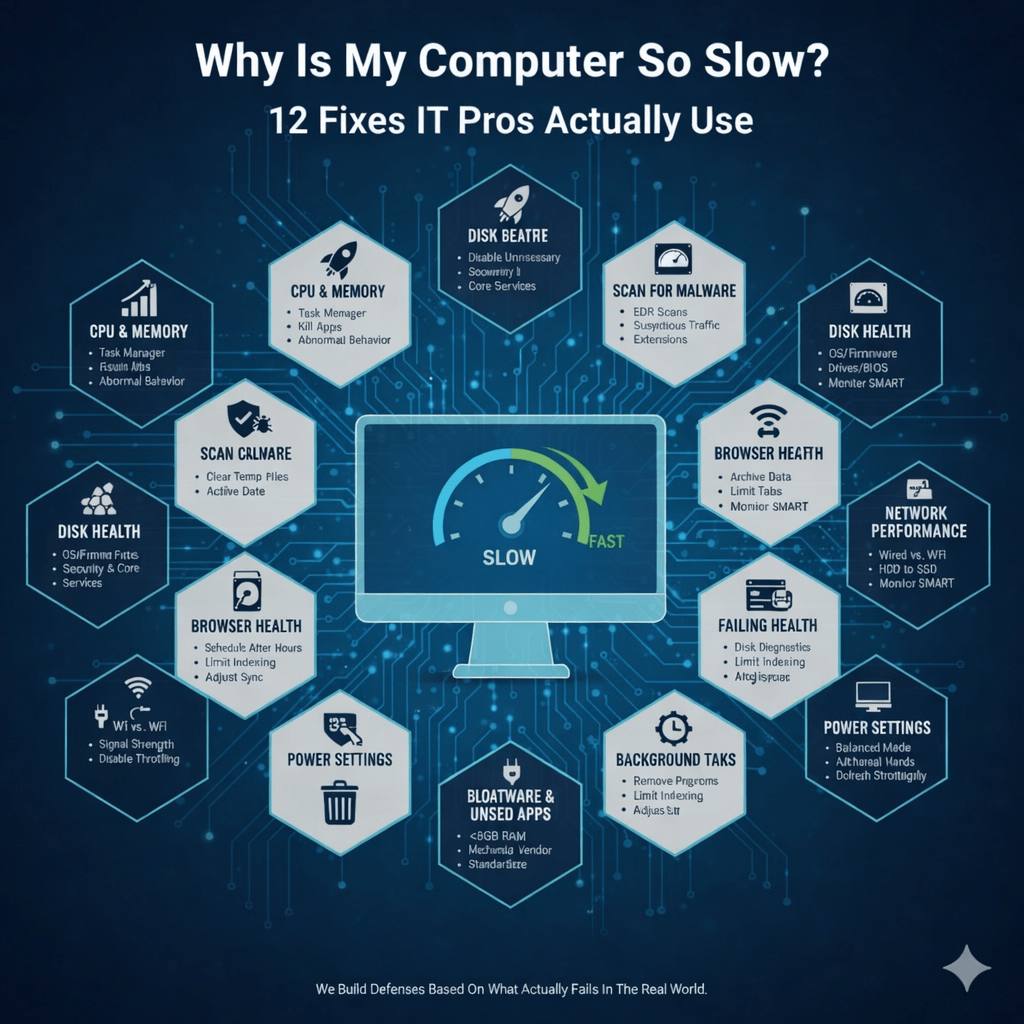
When users ask, “Why is my computer so slow,” the answer often lies not in age but in misconfiguration, malware, and resource overload. That assumption costs businesses hours of lost productivity every week. In reality, most slow computers aren’t dying — they’re misconfigured, overloaded, infected, or poorly maintained.
At Mindcore Technologies, we troubleshoot slow systems daily. In most cases, performance issues come from a short list of root causes that IT professionals know exactly how to fix. The difference between a sluggish machine and a fast one is rarely magic — it’s disciplined maintenance and the right diagnostics.
Here are the 12 fixes IT pros actually use to restore performance.
1. Identify What’s Eating Your CPU and Memory
To answer “Why is my computer so slow,” IT professionals first examine CPU and memory usage to pinpoint resource bottlenecks.
Common culprits:
- Browser tabs consuming excessive RAM
- Background sync tools (OneDrive, Dropbox)
- Poorly written third-party software
- Malware or cryptominers
- Runaway processes
IT fix:
- Review Task Manager or Activity Monitor
- Kill or uninstall resource-heavy applications
- Identify abnormal behavior early
If CPU or memory is pinned constantly, performance will collapse.
2. Check Startup Programs (Most Systems Have Too Many)
Startup bloat is a key factor in explaining “Why is my computer so slow,” as excessive apps consume memory and processing power immediately on boot.
Common offenders:
- Auto-updaters
- Vendor utilities
- Chat tools
- Backup agents
- Old software that was never removed
IT fix:
- Disable unnecessary startup applications
- Prioritize only security tools and core services
This alone often cuts boot time in half.
3. Scan for Malware and Infostealers
Slow performance can be a security issue, not a hardware issue.
Modern malware:
- Runs silently
- Steals credentials
- Uses CPU and disk constantly
- Opens network connections
- Avoids traditional antivirus detection
IT fix:
- Run EDR-based scans
- Check for suspicious outbound traffic
- Remove unauthorized browser extensions
At Mindcore, many “slow PC” tickets turn out to be early-stage infections.
4. Check Disk Health and Free Space
A primary reason users wonder, “Why is my computer so slow,” is insufficient disk space, which drastically impacts SSD and overall performance.
Problems occur when:
- Drives are over 85–90 percent full
- Temp files accumulate
- Log files grow unchecked
- Outlook PST files balloon
IT fix:
- Clear temp files
- Archive or delete old data
- Expand storage when necessary
- Monitor disk health
A full disk equals a slow system.
5. Verify the System Is Fully Patched
Outdated systems don’t just run slower — they behave unpredictably.
Unpatched systems may:
- Struggle with modern apps
- Run inefficient background services
- Have driver conflicts
- Miss performance optimizations
IT fix:
- Update OS and firmware
- Patch drivers and BIOS
- Remove unsupported software
Performance and security updates often overlap.
6. Evaluate Browser Health (This Is a Big One)
Browsers are the most abused application on modern systems.
Common issues:
- Dozens of tabs left open
- Poorly written extensions
- Memory leaks
- Sync conflicts
IT fix:
- Remove unnecessary extensions
- Limit active tabs
- Reset browser profiles when needed
- Enforce managed browser policies
A broken browser profile can cripple an otherwise healthy system.
7. Check for Failing Hardware (Especially Storage)
Hardware does fail — especially aging drives.
Signs of failing storage:
- Freezes during file access
- Extremely slow boot times
- Disk errors in logs
- Random application crashes
IT fix:
- Run disk diagnostics
- Replace failing HDDs with SSDs
- Monitor SMART data
Upgrading to an SSD is one of the biggest performance boosts available.
8. Verify Network Performance Isn’t the Real Issue
Even when performance feels poor and users ask, “Why is my computer so slow,” network latency or cloud workload issues may be the true cause.
Symptoms:
- Cloud apps lag
- File uploads stall
- Video calls freeze
- Web apps feel unresponsive
IT fix:
- Test wired vs. Wi-Fi performance
- Check signal strength
- Identify network congestion
- Replace outdated routers or NIC drivers
Poor connectivity feels exactly like a slow computer.
9. Reduce Background Sync and Indexing Tasks
Background services quietly drain performance.
Examples:
- File indexing
- Search services
- Cloud sync loops
- Backup jobs running during work hours
IT fix:
- Schedule heavy tasks after hours
- Limit indexing scope
- Adjust sync settings
Background noise adds up quickly.
10. Remove Bloatware and Unused Applications
Pre-installed software and old apps degrade performance over time.
IT fix:
- Remove unused programs
- Eliminate vendor bloatware
- Standardize approved software lists
Less software equals fewer conflicts and faster systems.
11. Verify Power and Performance Settings
Many laptops run in power-saving mode permanently.
Symptoms:
- CPU throttling
- Lag during multitasking
- Poor performance while plugged in
IT fix:
- Set systems to balanced or performance mode
- Adjust power plans
- Disable aggressive CPU throttling
This is a common and overlooked cause.
12. Know When It’s Time to Upgrade
Sometimes, the fix really is hardware — but only after everything else is ruled out.
Upgrade indicators:
- Less than 8 GB RAM
- Mechanical hard drives
- End-of-life systems
- Unsupported operating systems
IT fix:
- Upgrade RAM
- Replace HDDs with SSDs
- Refresh systems strategically
Mindcore helps businesses time upgrades to maximize ROI instead of replacing systems prematurely.
Why IT Pros Fix Slowness Differently
IT professionals don’t guess. They:
- Diagnose root causes
- Use performance metrics
- Eliminate security risks
- Standardize environments
- Prevent repeat issues
Random tweaks rarely solve systemic problems.
How Mindcore Technologies Keeps Systems Fast and Secure
Mindcore helps businesses eliminate performance issues with:
- Proactive system monitoring
- Endpoint security and EDR
- Patch and update management
- Hardware lifecycle planning
- Malware and infostealer detection
- Network optimization
- Standardized device configurations
- 24/7 support and response
Fast systems aren’t luck — they’re maintained properly.
Final Takeaway
A slow computer is usually a symptom, not a failure.
With the right diagnostics and fixes, most systems can be restored to full performance without replacement.
The key is addressing:
- Resource abuse
- Malware
- Disk health
- Network issues
- Patch gaps
- Configuration mistakes
When systems are maintained correctly, performance stays consistent — and productivity follows.
Frequently Asked Questions
Why do computers become slow over time?
Computers often slow down because of outdated hardware, insufficient RAM, excessive background applications, malware, fragmented storage, outdated operating systems, or accumulated temporary files and startup programs.
How can users improve computer performance?
Users can improve performance by updating software, removing unnecessary startup applications, upgrading to SSD storage, increasing RAM, scanning for malware, clearing temporary files, and restarting systems regularly. Businesses using managed IT support services can proactively monitor and optimize endpoint performance before productivity issues escalate.
Why does malware affect computer speed?
Malware consumes system resources, runs unauthorized background processes, damages files, and can significantly reduce processing power, memory availability, and overall system responsiveness. Organizations implementing proactive cybersecurity protection improve early detection of malware and unauthorized activity.
How does insufficient RAM impact performance?
Low RAM limits a computer’s ability to multitask efficiently, causing applications to slow down, freeze, or rely heavily on slower storage-based virtual memory. Systems with inadequate memory often struggle with cloud applications, video conferencing, and multitasking workloads.
When should businesses upgrade computer hardware?
Businesses should consider upgrades when systems struggle with operational workloads, experience frequent slowdowns, fail to support modern applications, or impact employee productivity and operational efficiency. Organizations implementing scalable cloud and infrastructure strategies can better manage long-term hardware lifecycle planning.
IT Infrastructure and Endpoint Performance Expertise from Matt Rosenthal
Matt Rosenthal, CEO of Mindcore Technologies, has extensive experience helping organizations optimize endpoint performance, strengthen IT infrastructure, and improve operational efficiency across modern business environments. His expertise in managed IT services, infrastructure scalability, endpoint management, cloud architecture, cybersecurity governance, and operational continuity helps businesses improve system reliability while reducing downtime and performance bottlenecks. Matt’s leadership focuses on building proactive IT strategies that strengthen operational visibility, improve infrastructure performance, reduce enterprise risk, and support scalable long-term business growth.

