Introduction
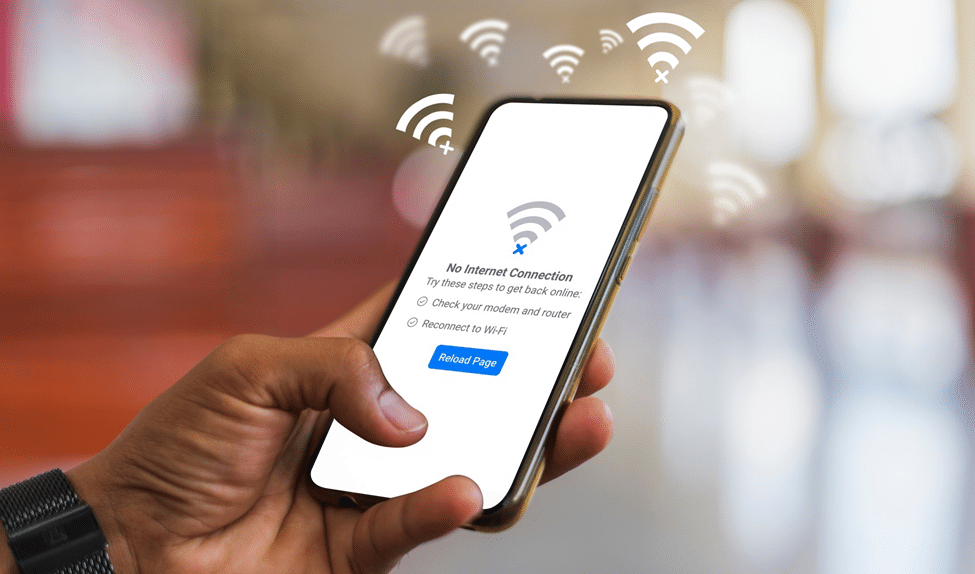
In today’s environment, understanding why a wireless network connected but no internet occurs is critical for maintaining seamless connectivity. No matter whether an individual is using it for browsing through different social media networks, viewing various videos, or even conducting business online, there can surely be a reliable change brought on by having a WiFi connection. Many users encounter a Wi-Fi connected but no internet issue, where the device connects successfully to Wi-Fi but cannot access online services. If you learn to relate to such cases, you are one of many. In this guide, we’ll explore the most common reasons behind the WiFi connected but no internet issue and provide practical steps to fix it.
Understanding the Problem
Seeing a wireless network connected but no internet means your mobile device talks to the router, yet it cannot access online resources. A Wireless Network Connected But No Internet problem can have several causes, and identifying the source is the first step toward restoring connectivity.
Common Reasons for the Issue
1. Router Problems
A wireless network connected but no internet is often caused by router issues, including outdated firmware, hardware malfunctions, or too many devices connected. A Wireless Network Connected But No Internet warning may result from router problems such as outdated firmware, hardware failure, or network overload.
- Overloaded Devices: Mostly connecting to a router will consume bandwidth. Excessive numbers of devices will cause a router to overburden itself with connectivity.
- Outdated Software: Firmware is another factor that can affect connectivity. Therefore, it is necessary to upgrade its firmware from time to time, as this impacts stable connections to the internet.
- Hardware Malfunctions: Physical problems with a router, such as heating or broken ports, do not allow it work properly.
2. Internet Service Provider (ISP) Issues
If you’re asking why is my internet not working on my phone, the issue may sometimes lie with your Internet Service Provider rather than your device. There may be:
- Outages: Your ISP could be experiencing service interruptions in your area.
- Maintenance Work: Scheduled maintenance can temporarily disrupt your internet service.
- Technical Difficulties: Any technical glitches on your ISP’s end can affect connectivity.
3. Device Configuration Issues
Incorrect settings on your mobile device can also lead to connectivity problems. Common configuration issues include:
- Network Settings: Incorrect network settings or stored WiFi credentials can prevent access.
- Saved WiFi Networks: If your device has outdated or corrupted network configurations, it might fail to connect properly.
4. IP Address Conflicts
If both devices are governed by the same address assigned, they will create conflict from the usage of the devices either of them, and they will lose the internet connection. Such issues often occur in the commercial networks having a limited number of IP addresses.
5. Firewall or Security Software
Sometimes firewalls, VPNs, or even parental controls restrict some access to certain websites or services, even making it difficult to connect.
How to Fix the No Internet Connection Issue
Having established various reasons why a mobile phone joins Wi-Fi but cannot access the Internet, let’s now discuss realistic solutions to such dependent problems in the next paragraph:
1. Check Your Internet Connection
Is it general troubleshooting for the equipment or just for the fact that it is not the internet? let us check if the issue relates to the equipment itself or it is actually related to the internet:
- Test Other Devices: If your phone says connected to the internet but no internet works, connect another device to the same WiFi network to determine whether the issue is with your phone or the network itself. If they connect with the internet, then the problem most likely lies within your mobile device.If no device can connect, the issue may involve the router or service provider. Businesses dealing with recurring ISP problems may also want to evaluate 5G business internet as an alternative or backup connectivity option.
2. Restart Your Device and Router
To resolve a Wireless Network Connected But No Internet issue, restart both your mobile device and router to clear temporary connection faults.
- Restart Your Device: Switch off and immediately turn on your device again.
- Restart the router: Remove it from the main power supply and then wait for at least 30 seconds before plugging it back in to reset any temporary faults that may occur from the router.
3. Forget and Reconnect to the WiFi Network
In the event that your gadget does not still connect to the internet, delete the Wi-Fi and reconnect.
- Forget the Network: Go to your device Wi-Fi settings, select the particular network that has the problem, click on forget. Any stored credentials or any settings associated with that network will be purged off the device.
- Reconnect to the Network: Search for available networks again, select your WiFi, and enter the password to reconnect. This process can refresh your connection and resolve any issues caused by outdated credentials.
4. Check for IP Address Conflicts
To remove possible conflicts in IP addresses, renew the IP address or configure the device to obtain an IP address automatically.
- Renew IP Address:In the WiFi settings of your device, search for the provision to renew or release the IP address.
- Set to Automatic: Set your computer to automatically obtain an IP address; this option is usually found in the advanced settings of the WiFi network. For your device to automatically obtain an IP address, make sure it is set to the automatic setting. The option is typically under advanced settings in your WiFi configuration.
5. Update Device Software
Your phone might be outdated in the installation of the operating system; outdated software causes connection problems.
- Check for Updates: Open settings and select Software Update to look for updates. If any available update is found, download and install it, then restart your phone for changes to take place.
6. Check Router Settings
If you have access to your router settings, checking on possible issues that are blocking internet access is much easier.
- Login to Router: Type the default IP in the browser to access the router settings. You can find the IP at the back of the router.
- Check Internet Status: This determines the state of your internet connection. If there are any problems this may be determined by checking for an error message on your router.
- Firmware Update: It is necessary to perform an update on the router firmware via the settings menu to update its performance and security should it be outdated.
7. Disable VPN or Firewall
Internet access could be blocked by the VPN or firewall you have in place.
- Disable VPN: Shut down all your VPN applications temporarily and check if the internet has resumed. Certain VPNs mess up network connections.
- Change Firewall Settings: You may have to turn it off temporarily in order to troubleshoot and see if it is indeed the problem.
Conclusion
You should check the common causes and read the following possible solutions to really help you troubleshoot better. A Wireless Network Connected But No Internet issue can be frustrating, but checking the router, device settings, IP address, and ISP status can help restore connectivity quickly.
If you keep experiencing a situation where you are connected to the internet but no internet works, follow the troubleshooting steps above to quickly restore full connectivity. Read through the troubleshooting procedures discussed earlier to help you connect to the internet again. If this does not correct the situation, it might be time to ask your Internet Service Provider for further assistance. Stay connected and continue to enjoy the digital world with reliable internet access!
Frequently Asked Questions
What does “Wi-Fi connected but no internet” mean?
A wireless network connected but no internet means your device can communicate with the Wi-Fi router, but the router or network cannot reach the internet. Common causes include router problems, ISP outages, incorrect device settings, IP conflicts, or security software blocking access.
The Wi-Fi connection itself may be working correctly. The failure can occur between the router and internet provider or because of a configuration problem on the affected device.
Why is my Wi-Fi connected but there is no internet?
Common causes include router malfunctions, ISP outages, incorrect device settings, IP address conflicts, outdated router firmware, and firewall or VPN restrictions. Testing another device on the same Wi-Fi network can help determine whether the problem is limited to one device or affects the entire network.
If every device has the same issue, investigate the router or internet service first. If only one device is affected, review that device’s saved Wi-Fi settings, IP configuration, software, VPN, or security controls.
How do I fix Wi-Fi connected but no internet?
To fix Wi-Fi connected but no internet, test another device, restart your device and router, forget and reconnect to the Wi-Fi network, renew the IP address, update device software, and check router settings. If needed, review VPN or firewall settings that may be blocking access.
Start with the least disruptive troubleshooting steps before changing advanced settings. Testing another device first helps establish whether the issue is device-specific or affects the entire network.
How do DNS or IP conflicts cause no internet access?
DNS or IP conflicts can prevent a device from reaching the internet even when Wi-Fi is connected. Renewing the IP address, using automatic IP assignment, checking DHCP settings, and correcting network configuration can restore communication when incorrect or conflicting addresses are disrupting connectivity.
The article specifically recommends renewing the IP address or configuring the device to obtain an address automatically when an IP conflict is suspected.
When should I contact my ISP or IT support?
Contact your ISP or IT support when the issue continues across multiple devices, persists after restarting the router, or appears during an ongoing service outage. Professional support can help identify whether the problem involves the ISP, router, network configuration, or another issue that basic troubleshooting cannot resolve.
Before escalating, document which devices are affected and which troubleshooting steps you have already completed. This can help the ISP or IT team isolate the problem more efficiently.
Matt Rosenthal’s Expertise in Mobile Network Troubleshooting
Matt Rosenthal, CEO of Mindcore Technologies, brings decades of IT, network infrastructure, and cybersecurity leadership experience. He helps organizations and individuals diagnose connectivity issues, resolve IP and DNS conflicts, manage router configurations, and maintain secure and reliable mobile networks. Under his leadership, businesses ensure consistent internet access for mobile devices, supporting operational continuity and minimizing network disruptions Business Internet Services.