


Emergency ransomware help is on the way. You have made the calls, the response team is mobilizing, and the breach coach is engaged. Now you are waiting, and while you wait, ransomware is running.
The window between confirming ransomware and expert help arriving is not a window for waiting. It is a window for your internal team to execute the most time-critical containment actions that limit how much additional damage accumulates before professional response begins. Those actions do not require specialized expertise. They require knowing what to do and having the authority to do it.
Isolating infected systems is the single most impactful action available to your team during this window. Every infected system that remains connected to the network is actively spreading ransomware to additional systems. Every infected system that is isolated from the network stops spreading, regardless of whether encryption continues on the isolated system itself. The spread that occurs between detection and isolation is the spread that determines recovery scope. The spread that occurs after isolation is zero.
This article tells you exactly how to isolate infected systems for each connection type and system category, what to do and what not to do during isolation, how to confirm isolation is complete, and how to manage the window between isolation and expert arrival.
Before You Begin: The Two Rules That Cannot Be Broken
Every isolation action described in this article follows two rules that cannot be broken under any circumstances, regardless of what other pressures exist during the incident.
Rule One: Isolate from the network. Do not shut down.
The instinct when a system is actively encrypting files is to shut it down immediately to stop the encryption. That instinct will destroy forensic evidence that the investigation requires and that may contain encryption key material that enables recovery without payment. Volatile memory, which contains the ransomware executable, attacker tools, authentication tokens, and potentially encryption keys, is destroyed permanently the moment power is removed.
Network isolation stops the spread. System shutdown stops the encryption on that system but destroys the evidence. The correct action is always isolation first, with shutdown occurring only after forensic memory capture has been completed by the professional response team.
Rule Two: Isolate the system. Do not wipe it.
Wiping or reimaging an infected system before forensic evidence is preserved destroys that evidence and may occur before the full scope of infection is understood. A system that appears to be isolated and clean may still have active connections to the network that isolation did not catch. Do not wipe any system until the professional response team has confirmed that forensic evidence has been preserved and that threat elimination is complete.
How to Isolate Wired Desktop and Laptop Systems
Wired systems connected through a physical network cable are the fastest and most reliable systems to isolate because physical cable disconnection requires no software interaction with the potentially compromised operating system.
The Action
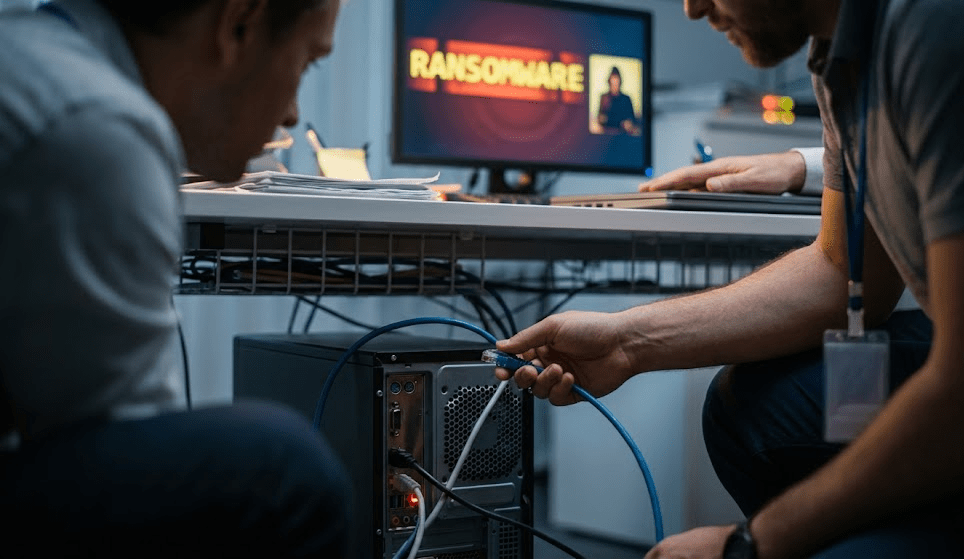
Find the network cable where it connects to the back or side of the computer. It looks like a slightly wider version of a phone cable and plugs into a port with a small clip. Pull the cable out of the computer. You will hear or feel a click as the clip releases.
That is the complete isolation action for a wired system. The system is now network-isolated regardless of what the operating system is doing, regardless of whether ransomware has affected the operating system’s responsiveness, and regardless of what credentials or software access you have to the system.
What to Expect After Isolation
The system will continue operating. If encryption was in progress, it may continue on locally stored files, files on locally attached storage like external drives that are plugged directly into the computer, and files on network drives that were already cached locally at the time of disconnection. It will not reach new network targets.
If the system was displaying a ransom note, the note will remain displayed. Do not close it. Photograph it or screenshot it as evidence before doing anything else with the display.
The system may become less responsive as encryption continues consuming CPU resources, or it may become more responsive if the ransomware was consuming bandwidth for lateral movement that has now been stopped.
What Not to Do
- Do not unplug the power cable. The system must remain powered on to preserve volatile memory.
- Do not disconnect external monitors, keyboards, or mice unless specifically instructed to by the response team. These do not affect isolation and their disconnection may interfere with the response team’s ability to examine the system remotely if remote access is later established through alternative means.
- Do not disconnect the cable at the wall jack or switch end instead of at the computer end. Disconnecting at the computer end is faster, more certain, and does not require locating the specific network port the cable connects to on the switch.
How to Isolate Wireless Systems
Wireless systems require a different isolation approach because there is no physical cable to disconnect. The approach depends on whether the system’s operating system is responsive.
If the Operating System Is Responsive
Navigate to the wireless network settings and disable the wireless adapter. On Windows systems, this can be done through the taskbar by clicking the network icon and turning off Wi-Fi, or through Device Manager by right-clicking the wireless adapter and selecting Disable. On Mac systems, click the Wi-Fi icon in the menu bar and turn Wi-Fi off.
Confirm that the wireless connection is terminated by verifying that the network icon shows no connection. On Windows, the network icon in the taskbar will show a disconnected state. On Mac, the Wi-Fi icon will appear empty.
If the Operating System Is Not Responsive
If the system is too affected by encryption activity to respond to normal user interface navigation, disable wireless at the access point level rather than at the device level.
Locate the wireless access point that the affected system is connected to and power cycle it or disable the radio. For consumer-grade routers and access points, the power button or power cable is the fastest option. For enterprise access points managed through a controller, disable the specific radio or SSID through the management console.
Disabling the access point affects all devices connected to it, not just the infected system. This is acceptable during active ransomware containment because the operational disruption of taking down a wireless segment is preferable to leaving an infected wireless device connected.
If You Cannot Disable the Access Point
Physical isolation of wireless devices that cannot be software-isolated and whose access point cannot be disabled requires physical distance. Move the device to a location outside the range of the wireless signal, or place it in an enclosure that blocks wireless signals. A microwave oven with the door closed blocks wireless signals effectively as an emergency measure, though this is a last resort.
Do not put the device in a microwave and turn the microwave on. This is about the metal enclosure blocking signals, not about heat. The device must remain powered on.
For organizations with remote or hybrid teams, wireless exposure should also be reviewed through broader remote staff Wi-Fi safety practices and unsecured Wi-Fi risk controls.
How to Isolate Virtual Machines
Virtual machines require isolation at the hypervisor level rather than through the VM operating system. A ransomware-affected VM cannot be trusted to execute isolation commands correctly, and software-level network configuration changes within a compromised VM may not produce reliable isolation.
VMware vSphere and ESXi
In the vSphere client, navigate to the affected VM. Right-click on the VM and select Edit Settings. In the settings panel, find each network adapter listed and uncheck the Connected checkbox for each one. Apply the settings. The VM remains running but all network interfaces are disconnected.
Alternatively, from the ESXi host, run the following command in the host console:
esxcli network vm listUse that command to identify the VM’s world ID, then run:
esxcli network vm port disconnect --world-id=[ID]This disconnects its network ports.
Microsoft Hyper-V
In the Hyper-V Manager, right-click the affected VM and select Settings. Navigate to each Network Adapter in the settings panel and change the Virtual Switch dropdown to Not Connected. Apply the settings. The VM remains running with all network adapters disconnected.
Microsoft Azure
In the Azure portal, navigate to the affected virtual machine. Select Networking from the left panel. For each network interface attached to the VM, select the network interface, navigate to its Network Security Group, and create an inbound and outbound deny-all rule to block all traffic. Alternatively, dissociate the network interface from its subnet by modifying the IP configuration.
For faster isolation, stop the VM through the Azure portal and do not deallocate it. A stopped but not deallocated VM retains its memory state and can be examined forensically, while a deallocated VM loses volatile memory state.
AWS EC2
In the AWS Management Console, navigate to the affected EC2 instance. Modify the security group associated with the instance to remove all inbound and outbound rules, or attach a security group with explicit deny rules for all traffic. This isolates the instance at the network level without stopping the instance.
Alternatively, use VPC network ACLs to block all traffic to and from the subnet containing the affected instance if multiple instances on the same subnet are affected.
Organizations running cloud workloads should align isolation procedures with cloud security, cloud disaster recovery, and cloud governance practices.
How to Isolate Servers
Server isolation requires the same network disconnection approach as workstations but requires awareness of downstream dependencies that workstation isolation does not create.
Understand the Dependencies Before Isolating
Before isolating a server, take 30 seconds to identify what other systems depend on it. A domain controller that is isolated immediately disrupts authentication across the environment. A DNS server that is isolated disrupts name resolution for all systems that depend on it. A file server that is isolated disrupts access to shared data for all connected users. A database server that is isolated disrupts every application that queries it.
These dependencies do not mean the server should not be isolated. Continued operation of an infected server is worse than the operational disruption of isolating it. But knowing the dependencies allows the response team to be briefed on the downstream impact so that service continuity decisions can be made with accurate information.
Physical Server Isolation
For physical servers with wired connections, disconnect the network cables as with workstations. Servers often have multiple network cables for redundancy, management networks, storage networks, and production traffic. Disconnect all of them. Leave power cables connected.
Document which cables were disconnected and from which ports before disconnecting them. This documentation supports the response team’s environment reconstruction and the eventual reconnection of clean servers to the correct network segments.
Domain Controller Isolation
Domain controller isolation deserves specific attention because of its environment-wide impact. If your environment has multiple domain controllers, isolating one forces authentication traffic to the remaining controllers. If all domain controllers are infected and must be isolated, authentication across the environment will stop completely until recovery includes domain controller restoration.
When isolating domain controllers, notify the response team immediately about how many domain controllers are being isolated and whether any remain operational. The response team’s recovery sequencing depends on domain controller status because authentication infrastructure must be restored before dependent systems can function.
Server isolation should also be supported by strong network security, Zero Trust, and secure computer network practices.
How to Isolate Network-Attached Storage and File Servers
Network-attached storage devices and file servers are frequent ransomware targets because they contain the shared file system that multiple systems access. They also present specific isolation considerations because their disconnection affects every user and system that accesses them.
NAS Device Isolation
For NAS devices with network cable connections, disconnect the network cables as with workstations and servers. Leave power connected.
For NAS devices managed through a web interface, log into the management interface and disable all network interfaces through the network settings panel. This achieves isolation without physical cable access if the management interface remains accessible.
After isolation, do not attempt to access the NAS through its management interface to assess the damage or copy files. Any access to the NAS before the response team has assessed it for active ransomware risks further file system modification.
Shared File Server Isolation
Isolate shared file servers using the same network cable disconnection approach as other servers. Be aware that active file transfers and open files will be interrupted immediately. Users with files open on the file server will lose unsaved work.
Notify users immediately through out-of-band communication that the file server has been isolated and that they should not attempt to reconnect or access shared files through alternative means until the response team confirms the server is clean.
Shared data environments should be protected through stronger data governance, data protection controls, and ransomware data extortion defenses.
How to Handle Backup Systems During Isolation
Backup systems require special handling during ransomware containment because their status has direct implications for recovery options.
If backup systems are on the same network as infected systems and have not yet been encrypted, isolating backup systems from the production network protects them from reaching that the ransomware may not yet have accessed. This is one of the most operationally significant isolation actions available because it protects the primary recovery path.
If backup systems are managed through a separate network segment or through out-of-band management that does not traverse the infected network, verify that isolation of production systems has not inadvertently disrupted backup system connectivity. Backup systems on isolated storage should remain accessible through their management interfaces if those interfaces are on separate network segments.
Do not attempt to verify backup integrity by restoring files from backup systems during the containment phase. Backup restoration is a recovery action that must wait until threat elimination is confirmed complete. Accessing backup systems before that confirmation is confirmed creates risk of spreading ransomware to the backup environment.
Backup readiness should be part of a broader business data backup, disaster recovery services, and business continuity planning strategy.
Confirming Isolation Is Complete
After executing isolation actions, confirm that isolation is actually complete before concluding that the system is contained. Apparent isolation that has not been verified may leave the system connected through a secondary interface that was not disconnected.
For Physical Systems
Verify isolation by checking the network interface indicator lights on the back of the computer or server. Network interface lights that are dark indicate no connection. Lights that are illuminated or blinking indicate an active connection, which means an interface was not disconnected.
Check for wireless adapters in addition to wired interfaces. Some systems have both wired and wireless interfaces, and disconnecting the wired cable while leaving wireless enabled does not achieve isolation. Check Device Manager on Windows systems to see all network adapters and verify that all are disconnected or disabled.
Check for USB-based network adapters that may not have been included in the initial isolation actions. USB network adapters attached to the system provide a network interface that cable disconnection does not address.
For Virtual Machines
Verify isolation by checking the VM’s network adapter status in the hypervisor management console. Network adapters that show as disconnected or not connected are isolated. Network adapters that show as connected may indicate that the isolation action did not complete correctly.
For Cloud Instances
Verify isolation by checking the security group rules or network ACL rules applied to the instance. Rules that deny all inbound and outbound traffic confirm isolation. Review the effective rules, not just the rules you applied, to confirm that no other rules are overriding the isolation rules you added.
What to Do Between Isolation and Expert Arrival
After isolating affected systems, the window before expert help arrives is used for documentation and evidence preservation that does not require specialized tools.
- Photograph ransom notes. Before anything changes on affected systems, photograph or screenshot any ransom notes displayed on screens. These photographs document the specific ransom demand, the attacker’s communication channel, and the variant information that the response team uses for initial assessment.
- Document affected systems. Create a written list of every system confirmed infected, every system suspected infected, and every system confirmed clean. Include the system name, its location, the time it was identified, and what symptoms it is showing. This documentation is the scope assessment starting point that the response team works from when they arrive.
- Preserve log files. Windows Event Logs on affected systems have limited retention and may be overwritten. If any affected systems are accessible without adding network connectivity, copy the Windows Event Log files from C:\Windows\System32\winevt\Logs to a USB drive for preservation. Do not connect the USB drive to any system until confirmed with the response team that doing so does not risk spreading the ransomware to the USB drive.
- Document your actions. Write down every action your team has taken since detecting the ransomware, including timestamps. The response team needs this timeline to understand what has changed in the environment since detection and to account for your team’s actions in the forensic investigation.
- Do not attempt recovery actions. The window before expert arrival is for containment and documentation, not recovery. Do not attempt to restore files from backup, run decryption tools, or wipe and reimage affected systems. These actions may seem productive but consistently make the response more difficult when expert help arrives.
Response documentation should be supported by a clear cyber incident response plan, defined incident response team responsibilities, and regular incident response simulations.
Meet Our CEO, Matt Rosenthal
With more than 30 years of experience in business and technology leadership, Matt Rosenthal has guided organizations across healthcare, finance, legal, manufacturing, and defense through the critical window between ransomware detection and professional response arrival. As President and CEO of Mindcore Technologies, Matt leads a team that provides managed IT services and cybersecurity services that include the preparation infrastructure and response capability that determines what happens in that window.
Matt’s approach to pre-arrival containment preparation is grounded in the recognition that the actions your internal team takes before expert help arrives are as consequential as the expert response itself. Organizations whose teams know exactly what to do and are authorized to do it contain incidents faster and with less damage than those whose teams wait for external guidance before acting.
Frequently Asked Questions
What if I am not sure which systems are infected and which are clean?
When you cannot confirm which specific systems are infected, isolate the systems that are most likely infected based on observed symptoms and use segment-level isolation through switch port disabling to contain potential spread from systems you cannot individually assess. The response team will conduct the definitive scope assessment when they arrive. Your goal in the pre-arrival window is to stop as much spread as possible with the information available, not to conduct a forensically complete investigation.
What if isolating a system would stop a critical business process?
Isolate the system and simultaneously activate manual alternatives for the critical business process. The business process disruption from isolation is a recoverable operational consequence. The additional encryption and spread from not isolating an infected system is not recoverable in the same way. If the business process is so critical that its interruption creates immediate safety risk, as in specific healthcare or manufacturing contexts, coordinate the isolation with safety personnel before executing it rather than isolating immediately.
Should I unplug external hard drives or USB drives connected to infected systems?
Do not unplug external storage devices connected to infected systems without guidance from the response team. External storage that is currently connected to an infected system may itself be infected and unplugging it could spread the infection when it is connected to a clean system. The response team will assess the external storage as part of the forensic examination of the infected system. Leave it connected and in place until they advise otherwise.
What if I successfully isolated a system but then accidentally reconnected it?
Reconnect it to an isolated network segment rather than to the production network if possible, and notify the response team immediately. If it has been reconnected to the production network, isolate it again immediately and assess whether any other systems it may have communicated with during the brief reconnection period show new infection indicators.
How do I know when it is safe to reconnect isolated systems?
The response team will advise on reconnection when threat elimination is confirmed complete for each specific system, forensic evidence has been preserved, and the system has been validated as clean in an isolated test environment. Do not reconnect any isolated system before receiving explicit guidance from the response team, regardless of how long the isolation has been in place or how much pressure exists to restore operations.
Execute What You Can While Help Is Coming
The window between ransomware detection and expert arrival is not dead time. It is the window during which your team’s actions determine how much additional damage accumulates before professional response begins. Isolation actions your team executes during this window reduce that damage. Waiting does not.
You do not need specialized expertise to pull a network cable or disable a wireless adapter. You need the knowledge of what to do, the authority to do it, and the discipline to avoid the counterproductive actions that feel productive but extend the incident.
Mindcore’s cybersecurity services and managed IT services help organizations across healthcare, finance, legal, manufacturing, and defense build the pre-authorized containment procedures, network documentation, and practiced response capability that make effective pre-arrival isolation executable under pressure. If your team does not currently know what to do in the window before expert help arrives, contact Mindcore to build that capability before an incident requires it.

