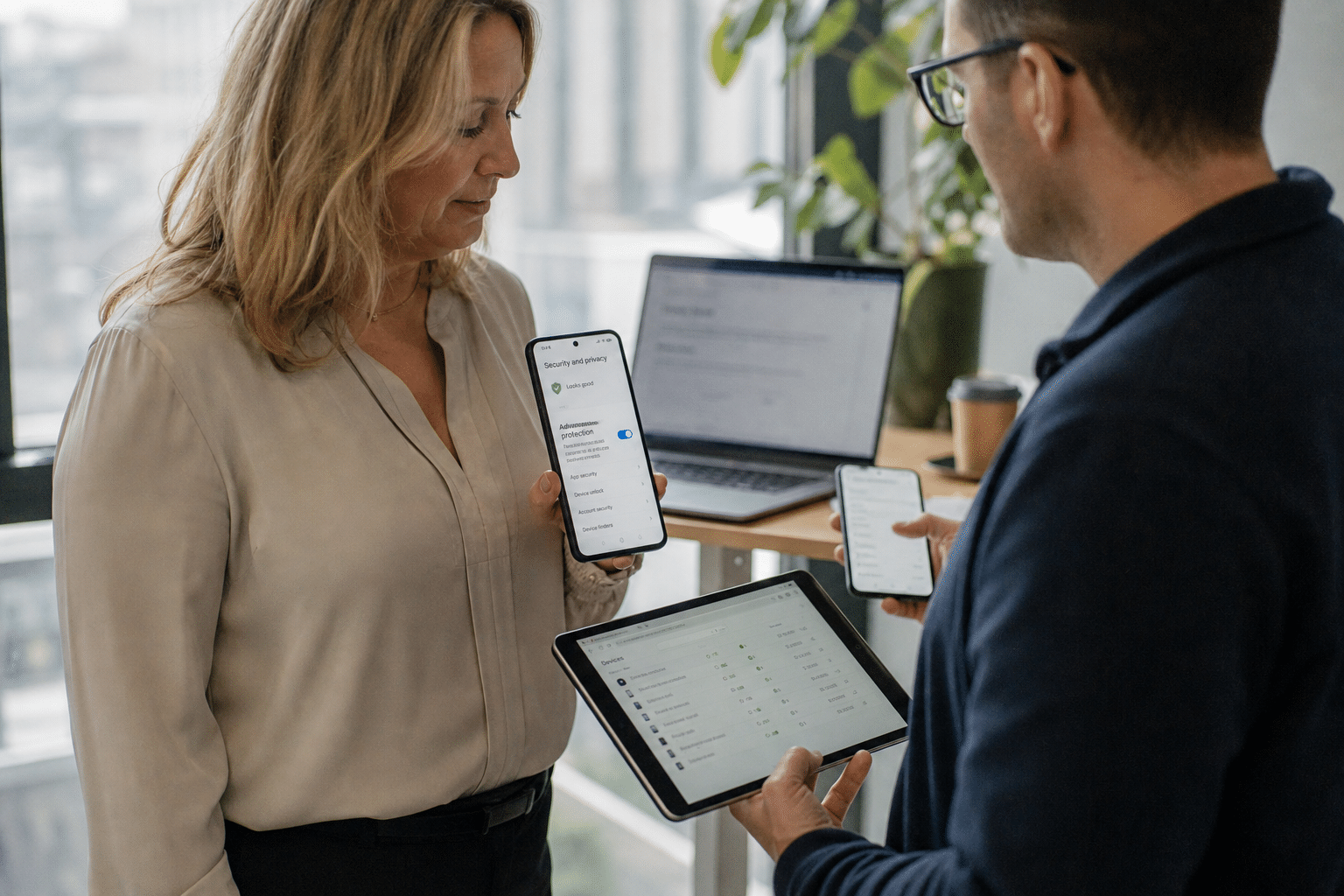
Android Advanced Protection is Google’s highest security setting for Android phones, and in Android 17 it gained a change that matters to every business with staff on Android: when it is switched on, only verified accessibility tools such as screen readers, switch access, voice input and Braille programs may use the system’s accessibility services. That interface lets an app read what is on screen, press buttons and type on the user’s behalf. It exists for people with disabilities, and it is also the main route mobile banking trojans and credential stealers use to capture logins, approve transactions and grant themselves permissions. Blocking it for everything else closes a major attack path. The trade-off is that automation apps, some launchers, cleaners, monitoring tools and some password manager features that rely on the interface lose functionality. For a small or midsize business, the right answer is usually yes for the people attackers target most, and a deliberate test before going further.
Overview: Five Points for Business Phone Fleets
Our mobile security team manages Android fleets for clients in finance, healthcare and professional services, and this change brings up five points.
- Accessibility abuse is the key Android malware technique. Restricting it removes the ability many trojans depend on.
- It is an opt-in mode. Advanced Protection is not on by default, so nothing changes until someone enables it.
- Some legitimate apps will break. Tools that automate taps or overlay the screen through accessibility will stop working.
- Risk varies by role. Executives, finance staff and administrators face more targeted attacks than most of the workforce.
- Management matters more than the toggle. A managed device with app controls and current updates delivers most of the protection either way.
Why Android Advanced Protection Targets Accessibility Abuse
Android Advanced Protection targets accessibility abuse because that interface gives an app the same powers as the person holding the phone. Once malware has it, most other defenses on the device can be bypassed by simply tapping through them.
What Malware Does With Accessibility
Malicious apps that obtain accessibility permission read one-time codes from the screen, watch for banking apps opening and overlay fake login screens, record keystrokes, and press approve on prompts. Some grant themselves further permissions without the user seeing a request.
One view holds that users should simply refuse accessibility requests from unfamiliar apps. In practice, attackers disguise the request as a required setup step, and people accept. The stronger view is that the platform should refuse on the user’s behalf unless the app genuinely serves an accessibility need, which is what this change does.
How the New Restriction Works
With Advanced Protection on in Android 17, the system checks whether an app is classified as a verified accessibility tool. If not, it cannot use the accessibility service at all, regardless of what the user taps.
What Advanced Protection Already Included
Advanced Protection already bundled other hardening, such as stricter limits on installing apps from outside trusted stores and protections against risky network connections. The accessibility change adds to that package rather than replacing it.
Which Business Phones Should Enable It
The phones that should enable Android Advanced Protection first are those carried by people attackers single out: anyone who approves payments, holds administrator access or speaks for the company publicly. For them, the security gain clearly outweighs the inconvenience.
Executives and Finance Staff
Leaders and finance teams are targeted with fraud that depends on reading codes and approving transactions on the phone. Removing accessibility abuse from their devices directly blocks the methods those attacks use.
Some executives push back because they rely on automation shortcuts. A short review of which apps they actually use usually finds alternatives, and the conversation is easier framed as protecting the company’s money than as a technical restriction.
Administrators and IT Staff
Anyone whose phone holds admin authenticator apps or receives privileged approval prompts should be in the first group. A compromised admin phone can unlock the whole environment.
Frontline and General Staff
For the wider workforce, the decision depends on which apps they need. Field staff using rugged-device launchers or workflow automation tools may lose functions they depend on. Test with a pilot group before a broad rollout.
What May Break and How to Test
Testing before enabling Android Advanced Protection broadly prevents surprise outages in apps staff depend on. A week-long pilot with a representative group catches most issues.
Apps Likely to Be Affected
Automation tools, custom launchers, screen-cleaning and battery utilities, some parental and employee monitoring apps, and features in some password managers that fill fields through accessibility are the most likely to lose function. Assistive tools used by staff with disabilities continue to work if they are verified accessibility tools.
Running a Pilot
Pick five to ten users across roles, enable the mode, and ask them to note anything that stops working. Check line-of-business apps, kiosk modes and any field data collection tools.
Planning Alternatives
Where an app breaks, ask the vendor whether a version that does not rely on accessibility is planned, or look for an alternative that uses supported interfaces such as autofill for password entry.
How to Respond When a Phone Shows Signs of Malware
Responding quickly to a suspected infected phone limits what an attacker can do with accessibility access, whether or not Advanced Protection was on. Most of the steps take minutes if they are written down in advance.
Warning Signs to Watch For
Staff should report a phone that suddenly drains its battery, shows overlays on top of banking or email apps, opens apps by itself, or asks again for accessibility permission after an app update. Unexpected text messages containing one-time codes the user did not request are another sign that someone is trying to use their accounts.
Containment Steps
Remove the phone’s access to company email and files through your management console first, then revoke sessions for the user’s accounts and reset passwords from a different, trusted device. Review which apps hold accessibility or device administrator rights and remove anything unfamiliar. For company-owned phones, a full wipe and re-enrollment is usually faster and more certain than trying to clean the device.
Learning From the Incident
Check how the app arrived: a sideloaded file, a link in a text message, or a lookalike app in a store. That answer tells you which control to tighten, whether it is install restrictions, link filtering or the decision about who should run Advanced Protection.
How Device Management Fits In
Device management delivers protection whether or not Advanced Protection is on, because it controls which apps can be installed, enforces updates and lets you remove a compromised phone from company access. Our mobile device management service is where we start with most clients.
Managed Play and App Allowlists
On company-owned devices, restrict installs to approved apps through managed Google Play. That alone prevents most malicious apps from arriving. Our explainer on what mobile device management is and why SMBs need it covers the basics, and our guide to Microsoft Intune shows how policies are applied.
Personal Phones
Staff using their own phones for work need a different approach: a work profile that separates company apps and data, plus clear guidance on enabling Advanced Protection personally if their role warrants it. Our BYOD policy guide explains the options.
Updates and Patch Levels
Advanced Protection depends on the phone running a current Android version. Set minimum OS and security patch levels in your device policy, and block access to company data from phones that fall behind.
Frequently Asked Questions
What does Android Advanced Protection do?
It is Android’s strongest security mode, bundling protections against risky app installs and network threats. In Android 17 it also restricts accessibility services to verified accessibility tools, blocking a common malware technique.
Will turning it on break apps?
Some. Automation tools, certain launchers, cleaners, monitoring apps and accessibility-based password manager features may stop working. Verified assistive tools continue to function.
Should every employee enable it?
Start with executives, finance staff and administrators, then expand after a pilot confirms the apps your teams depend on still work.
Does this replace mobile device management?
No. Device management controls app installs, updates and access to company data. Advanced Protection adds hardening on top.
Can we enforce it centrally?
Check your management platform’s current options for Android 17. Where central enforcement is not yet available, document the setting as a requirement for high-risk roles and verify it during device reviews.
Who Is Behind This Guidance
Mindcore Technologies manages and secures mobile fleets for small and midsize businesses, including Android Enterprise and Intune deployments for staff who approve payments and access sensitive data. This guidance reflects our pilots and rollouts with clients, and the mobile fraud cases our managed security services team investigates. You decide how your people use their phones; our role is to help you protect the ones attackers care about most without breaking the tools your teams rely on. Mindcore is led by CEO Matt Rosenthal, who focuses on practical security that fits how growing companies actually work.
Protect High-Risk Phones With a Free Strategy Call
This protection mode now shuts the accessibility door most Android banking and credential malware uses, and that makes it worth enabling for the people attackers target first. Turn it on for executives, finance staff and administrators, pilot it with a representative group before wider use, plan alternatives for apps that break, and keep device management, app allowlists and update requirements in place for everyone. Pair it with phishing-resistant MFA and staff awareness from our phishing attacks resource. If you want help deciding who should use it or running the pilot, book a free strategy call with our mobile security team, or start with an IT risk assessment of your device fleet.