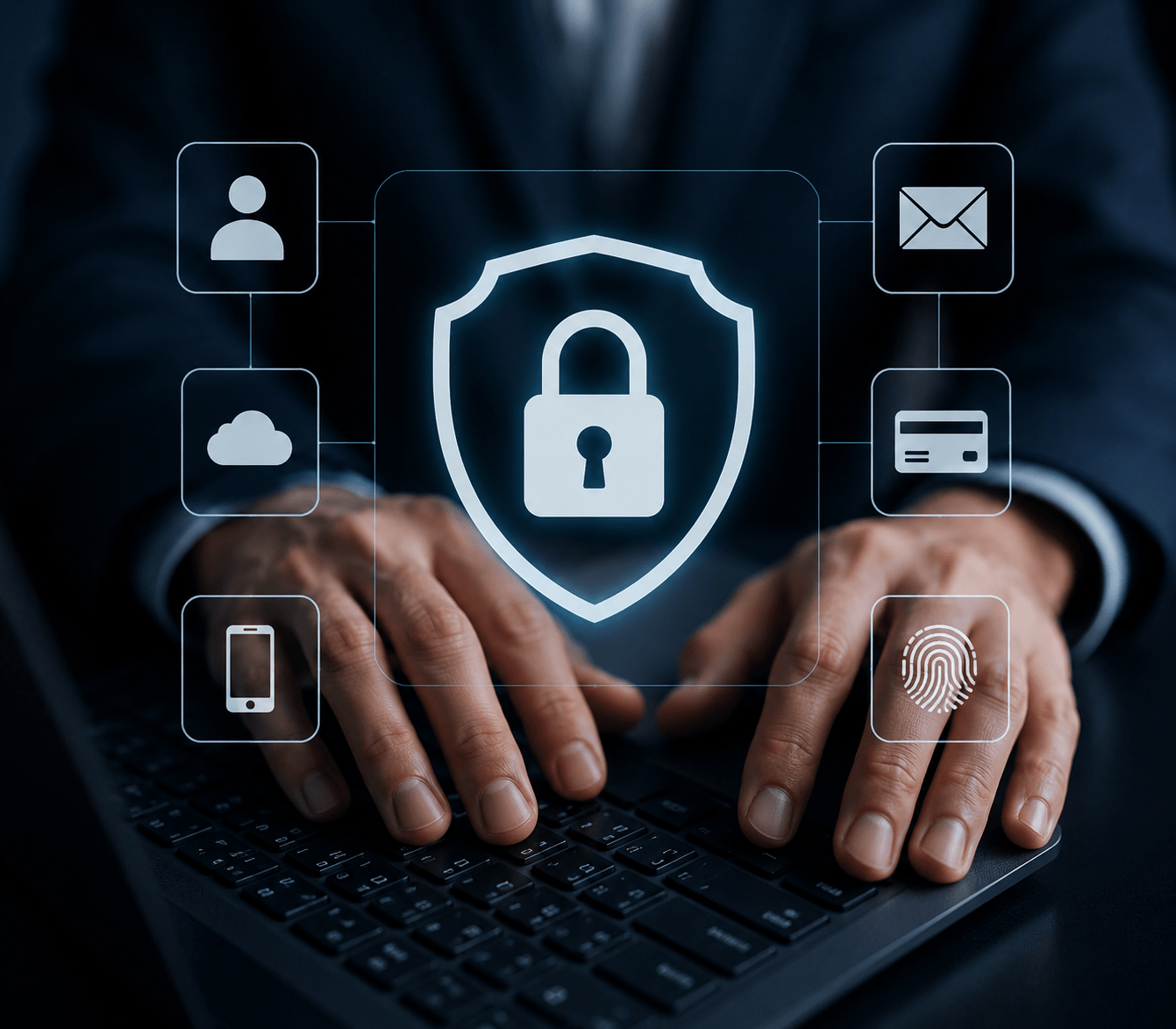
There is one security control that stops the majority of account-based cyberattacks. It is free on most platforms. It takes under two minutes to set up. And most people still have not turned it on.
Multi-factor authentication, commonly called MFA or two-factor authentication, is the single highest-impact security action available to individuals and organizations today.
Not because it is complicated. Because it closes the gap that almost every successful attack exploits: a stolen password.
Matt Rosenthal, CEO of Mindcore Technologies, makes this point without qualification:
“You’ve got to turn that on for every single account that you have. It should be your email, the banks, the credit cards. If you don’t have that turned on, you’re literally asking for a problem.”
This is the complete guide to MFA: what it is, how it works, which type to use, and how to get it set up today.
Organizations looking to strengthen identity security should evaluate layered cybersecurity services, authentication controls, and access management strategies before attackers exploit weak credentials.
The Problem MFA Solves
Passwords are broken. Not conceptually, but practically.
The average person has dozens of online accounts. Maintaining a unique, strong password for every one of them is not realistic without a password manager.
As a result, most people reuse passwords across platforms, use variations of the same password, or create passwords simple enough to remember but easy enough to crack.
Even if your passwords are strong and unique, they can still be exposed through no fault of your own.
When a platform you use is breached, your credentials end up in leaked databases that attackers buy and test against other platforms automatically.
MFA addresses this directly.
Even when an attacker has your correct password, they cannot get in without the second factor. A stolen password becomes useless.
Businesses reducing credential-based risk should also review data breach prevention strategies and security awareness training.
How MFA Works
MFA requires you to verify your identity using two or more independent factors from different categories.
Factor 1: Something You Know
Your password or PIN. This is what you already use.
Factor 2: Something You Have
A mobile device with an authenticator app, a hardware security key, or a phone that can receive a verification code.
Factor 3: Something You Are
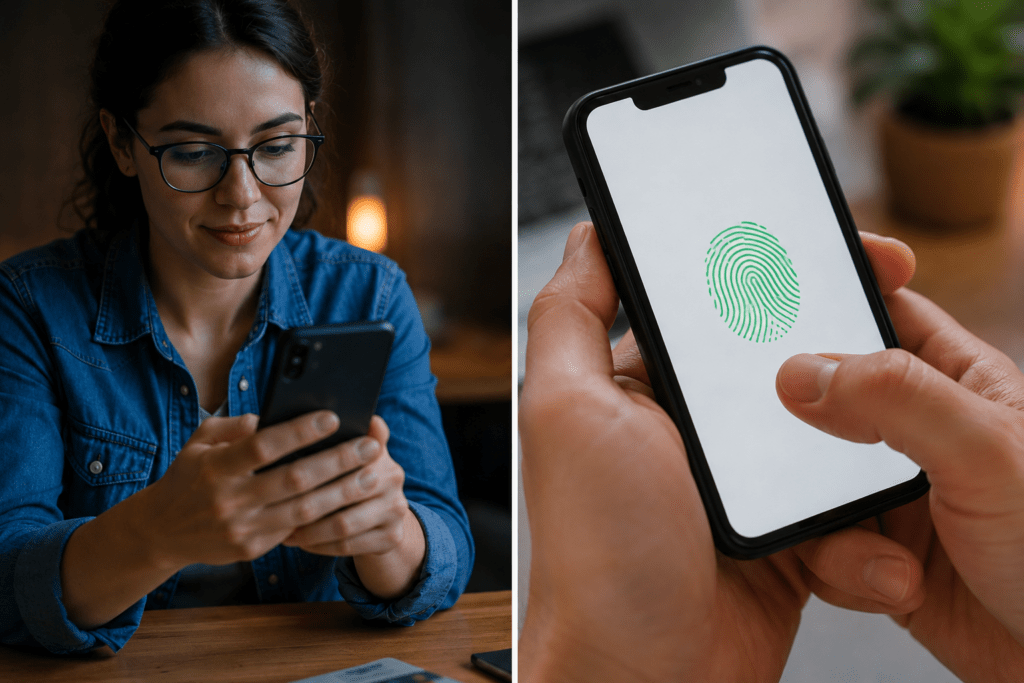
A biometric like a fingerprint or face scan used on some platforms and devices.
Standard login uses only Factor 1.
MFA adds Factor 2 or Factor 3.
An attacker who steals your password has Factor 1. They do not have your phone, your hardware key, or your fingerprint. Access is denied.
Organizations modernizing identity protection are increasingly combining MFA with Zero Trust security models and secure workspace architecture.
Comparing MFA Methods
Authenticator Apps
Apps like Microsoft Authenticator and Google Authenticator generate time-sensitive codes that expire every 30 seconds.
These codes are generated locally on your device and are not transmitted over the phone network, making them resistant to SIM swapping attacks.
This is the recommended standard for most accounts because it balances strong security with practical usability.
Hardware Security Keys
Physical devices like YubiKey plug into a USB port or connect via NFC.
They are the most phishing-resistant form of MFA because the key verifies that the website you are logging into matches the legitimate registered domain.
Recommended for executives, IT administrators, finance teams, and anyone with privileged access.
Push Notifications
Your authenticator app sends a login approval request to your device.
Convenient but vulnerable to MFA fatigue attacks where attackers repeatedly send prompts hoping users approve them out of frustration.
SMS Text Message Codes
A one-time code sent through text message.
Better than no MFA, but vulnerable to SIM swapping attacks where criminals transfer your phone number to another device.
Use it when it is the only option available, but upgrade to authenticator apps whenever possible.
Organizations strengthening authentication security should also evaluate network security monitoring and managed security services.
Where to Enable MFA First
Not all accounts carry equal risk, but the priority order is clear.
Enable Immediately
- Email accounts – Your email resets every other account and is the highest-value target in your digital life
- Banking and financial accounts – Direct access to funds and financial data
- Microsoft 365 and Google Workspace – Business communication and productivity platforms
- Cloud storage – OneDrive, Google Drive, and Dropbox often contain sensitive documents
- VPN and remote access systems – Direct entry points into corporate environments
Enable Next
- Social media accounts
- E-commerce accounts with saved payment methods
- Healthcare portals
- Any platform containing sensitive personal or business information
Businesses with distributed workforces should review Microsoft 365 security management and remote workforce security strategies.
MFA in the Enterprise: Beyond Individual Accounts
For organizations, MFA is not a personal preference. It is a security control that must be enforced across every user and system.
What enterprise MFA implementation requires:
- Conditional access policies enforcing MFA based on user role, device compliance, and location risk
- Single sign-on integration requiring MFA before accessing connected systems
- Privileged access management applying stricter controls to executive and administrator accounts
- Remote access enforcement for VPN connections and remote desktop sessions
- Logging and alerting on failed MFA attempts to identify brute force or MFA fatigue attacks
Compliance frameworks including HIPAA, CMMC, FINRA, and the FTC Safeguards Rule reference MFA as either required or strongly recommended.
Organizations in regulated industries that have not enforced MFA are behind on both compliance expectations and security best practices.
Businesses preparing for regulatory requirements should evaluate cybersecurity compliance services, CMMC consulting, and virtual CISO services.
How to Set Up MFA: Step by Step
For Individuals
- Download Microsoft Authenticator or Google Authenticator from your app store
- Go to the security settings of the account you want to protect
- Look for “two-step verification,” “two-factor authentication,” or “multi-factor authentication”
- Select authenticator app as your method
- Scan the QR code displayed on screen with your authenticator app
- Enter the six-digit code generated by the app to confirm setup
- Save backup recovery codes securely offline
- Repeat for every account, starting with email and financial accounts
For Organizations
- Audit all systems and platforms where MFA can be enforced
- Select an MFA solution integrating with your environment
- Configure conditional access policies defining when MFA is required
- Communicate rollout instructions clearly to employees
- Enforce MFA on privileged accounts first, then expand organization-wide
- Monitor MFA logs for anomalies and suspicious activity
- Test recovery procedures for users who lose MFA device access
Organizations implementing enterprise authentication controls should also consider co-managed IT services and managed IT support for operational guidance and monitoring.
Actionable Steps
- Download an authenticator app today – Microsoft Authenticator or Google Authenticator are free and fast to install
- Enable MFA on your email account first – This is the most important account to protect
- Work through financial accounts next – Banking, investments, and payment platforms
- Enable MFA on all work accounts – Microsoft 365, Slack, VPNs, and business software
- Store backup codes securely – Not in your email inbox
- Replace SMS MFA with authenticator apps – Upgrade security where possible
Organizations reducing account takeover risk should also review penetration testing services and IT risk assessments.
FAQ: Multi-Factor Authentication
What is the most secure form of MFA?
Hardware security keys provide the highest level of protection because they verify the legitimacy of the site being accessed, making them resistant to phishing attacks. Authenticator apps provide strong protection for most users and are the recommended standard.
Can MFA be bypassed by attackers?
Advanced attacks such as MFA fatigue, adversary-in-the-middle phishing, and SIM swapping can bypass some MFA methods. However, MFA still blocks the vast majority of account takeover attempts and significantly raises attacker difficulty.
What happens if I lose my phone and cannot access my authenticator app?
Most platforms provide backup recovery codes during MFA setup. These should be stored securely offline. Account recovery processes are also available through platform support teams.
Is MFA required for compliance in regulated industries?
MFA is explicitly required or strongly referenced in frameworks including HIPAA, CMMC Level 2, FINRA guidance, and the FTC Safeguards Rule. Organizations in regulated industries should treat MFA as a compliance requirement.
The Bottom Line
MFA is not a sophisticated security control. It is a basic one.
The fact that it stops most account-based attacks is not because it is complex. It is because most attackers rely on stolen passwords, and MFA makes stolen passwords insufficient.
The investment is minimal. A free app and two minutes per account. The protection it provides is significant.
There is no reasonable argument for leaving it off.
Mindcore Technologies helps organizations enforce MFA across their entire environment, from Microsoft 365 and cloud platforms to privileged access and remote connections.
If MFA is not enforced across your organization today, that is a gap with a known fix and no good reason to leave it open.
Schedule a consultation with Mindcore to evaluate your authentication controls, strengthen account security, and reduce the risk of credential-based attacks before they become full breaches.